> ## Documentation Index
> Fetch the complete documentation index at: https://docs.bloom.diy/llms.txt
> Use this file to discover all available pages before exploring further.
# Building from Web
> Use the full Bloom workspace to create, edit, and preview apps from your browser.
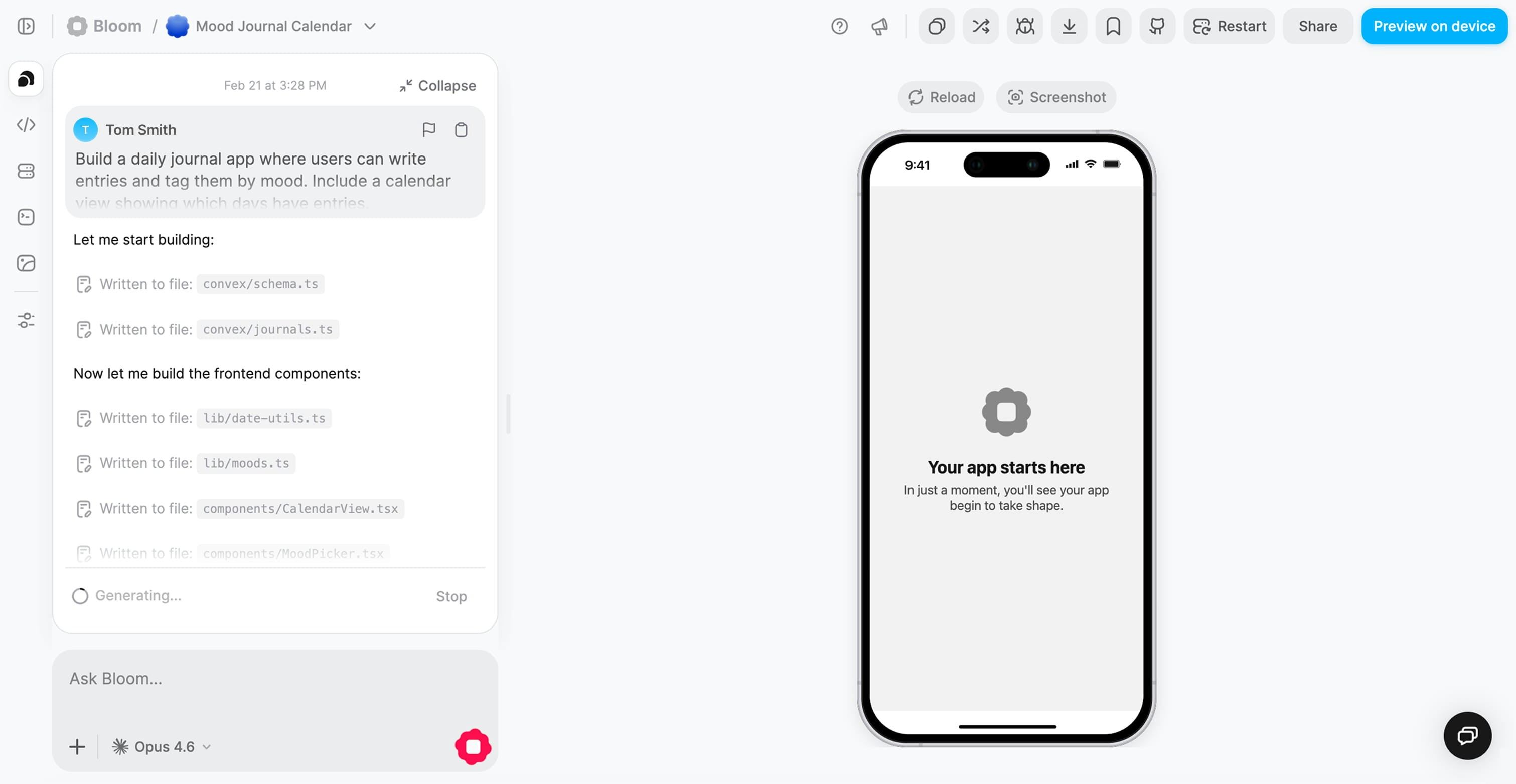
The **web version of Bloom** gives you the complete workspace for building, testing, and managing your app, all without installing anything locally. It's the most powerful way to work with Bloom, offering full access to code structure, backend tools, and real-time preview.
 ## When to use the web app
The web workspace is ideal for creating your first version and setting up core features.
Browse your app's structure and understand how components connect to backend functions.
Managing environment variables, API keys, and deployment settings is easiest on web.
Access logs, backend dashboard, and all diagnostic tools in one place.
Share your screen during meetings or work alongside teammates on larger displays.
When building sophisticated logic, data models, or integrations, the web workspace provides more screen space and tools.
## Creating your first app
Navigate to [bloom.diy](https://bloom.diy) and sign in to your account.
If you don't have an account yet, sign up with Google, GitHub, or email.
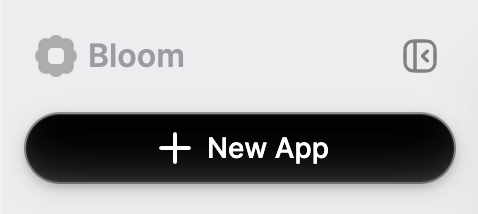
From your dashboard, click the **New App** button to start creating.
## When to use the web app
The web workspace is ideal for creating your first version and setting up core features.
Browse your app's structure and understand how components connect to backend functions.
Managing environment variables, API keys, and deployment settings is easiest on web.
Access logs, backend dashboard, and all diagnostic tools in one place.
Share your screen during meetings or work alongside teammates on larger displays.
When building sophisticated logic, data models, or integrations, the web workspace provides more screen space and tools.
## Creating your first app
Navigate to [bloom.diy](https://bloom.diy) and sign in to your account.
If you don't have an account yet, sign up with Google, GitHub, or email.
From your dashboard, click the **New App** button to start creating.
 In the prompt, describe your app idea in natural language.
**Be specific about:**
* The main purpose (e.g., "habit tracker," "recipe manager")
* Key features (e.g., "daily check-ins," "photo uploads")
* User flows (e.g., "users can create, edit, and delete entries")
**Good example:**
```
Build a daily journal app where users can write entries,
add photos, and tag entries by mood. Include a calendar
view showing which days have entries.
```
**Less helpful example:**
```
Make a journal app
```
Bloom creates your full-stack app:
* **Frontend** — Expo project with screens and UI components
* **Backend** — Convex functions, database schema, and API endpoints
* **Authentication** — OAuth configuration ready to enable
* **Preview** — Your app running live in the right panel
This usually takes 2-10 minutes depending on complexity.
Once generation completes, you'll see your app running in the preview panel.
Click through the screens
Test core functionality
Identify what works and what needs refinement
Use the chat to request changes:
* "Add a search bar to the main screen"
* "Change the primary color to blue"
* "Let users upload profile photos"
* "Add a settings screen with dark mode toggle"
Each iteration updates your app and shows changes in the preview.
### Choosing a model
You can choose which AI model Bloom uses to generate your code. The model selector is to the right of the **+** button in the bottom left corner of the chat input.
In the prompt, describe your app idea in natural language.
**Be specific about:**
* The main purpose (e.g., "habit tracker," "recipe manager")
* Key features (e.g., "daily check-ins," "photo uploads")
* User flows (e.g., "users can create, edit, and delete entries")
**Good example:**
```
Build a daily journal app where users can write entries,
add photos, and tag entries by mood. Include a calendar
view showing which days have entries.
```
**Less helpful example:**
```
Make a journal app
```
Bloom creates your full-stack app:
* **Frontend** — Expo project with screens and UI components
* **Backend** — Convex functions, database schema, and API endpoints
* **Authentication** — OAuth configuration ready to enable
* **Preview** — Your app running live in the right panel
This usually takes 2-10 minutes depending on complexity.
Once generation completes, you'll see your app running in the preview panel.
Click through the screens
Test core functionality
Identify what works and what needs refinement
Use the chat to request changes:
* "Add a search bar to the main screen"
* "Change the primary color to blue"
* "Let users upload profile photos"
* "Add a settings screen with dark mode toggle"
Each iteration updates your app and shows changes in the preview.
### Choosing a model
You can choose which AI model Bloom uses to generate your code. The model selector is to the right of the **+** button in the bottom left corner of the chat input.
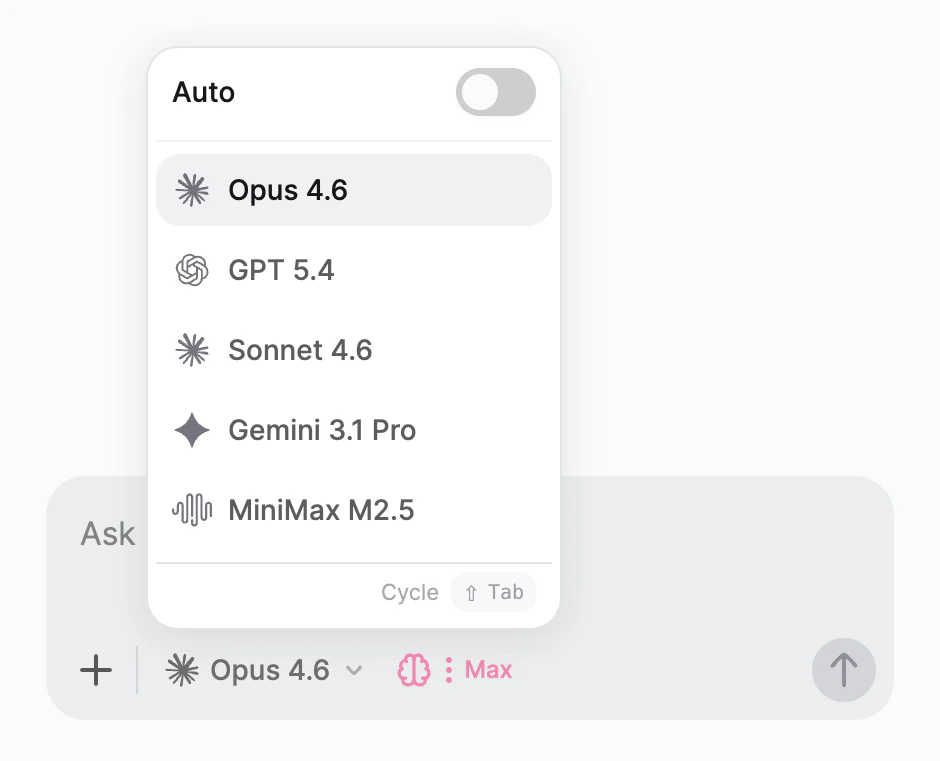 **Available models:**
| Model | Cost | Best for |
| ------------------ | ------ | ------------------------------------------- |
| **Auto** (default) | Varies | Bloom picks the best model for each request |
| **MiniMax M2.5** | \$ | Lighter, faster generations |
| **Gemini 3.1 Pro** | \$\$ | Balanced speed and quality |
| **Sonnet 4.6** | \$\$ | Balanced speed and quality |
| **GPT 5.3 Codex** | \$\$\$ | Complex, high-quality generations |
| **Opus 4.6** | \$\$\$ | Complex, high-quality generations |
**Auto** is selected by default and works well for most requests. Higher-tier models (\$\$, \$\$\$) produce more sophisticated results but use more credits per generation.
## Working with the preview
### Testing your app
The live preview lets you interact with your app as if you're using it on a real device:
Tap buttons, fill out forms, navigate between screens—everything is interactive.
Walk through complete user journeys from start to finish to verify functionality.
Resize the preview to see how your app adapts to different screen sizes.
For apps with live data, open multiple browser windows to test sync across devices.
### Switching between web and mobile preview
The preview toolbar includes a toggle that lets you switch between a **web layout** and a **mobile device frame**. Use it to verify that your app looks and feels right on both platforms without leaving the workspace.
**Available models:**
| Model | Cost | Best for |
| ------------------ | ------ | ------------------------------------------- |
| **Auto** (default) | Varies | Bloom picks the best model for each request |
| **MiniMax M2.5** | \$ | Lighter, faster generations |
| **Gemini 3.1 Pro** | \$\$ | Balanced speed and quality |
| **Sonnet 4.6** | \$\$ | Balanced speed and quality |
| **GPT 5.3 Codex** | \$\$\$ | Complex, high-quality generations |
| **Opus 4.6** | \$\$\$ | Complex, high-quality generations |
**Auto** is selected by default and works well for most requests. Higher-tier models (\$\$, \$\$\$) produce more sophisticated results but use more credits per generation.
## Working with the preview
### Testing your app
The live preview lets you interact with your app as if you're using it on a real device:
Tap buttons, fill out forms, navigate between screens—everything is interactive.
Walk through complete user journeys from start to finish to verify functionality.
Resize the preview to see how your app adapts to different screen sizes.
For apps with live data, open multiple browser windows to test sync across devices.
### Switching between web and mobile preview
The preview toolbar includes a toggle that lets you switch between a **web layout** and a **mobile device frame**. Use it to verify that your app looks and feels right on both platforms without leaving the workspace.
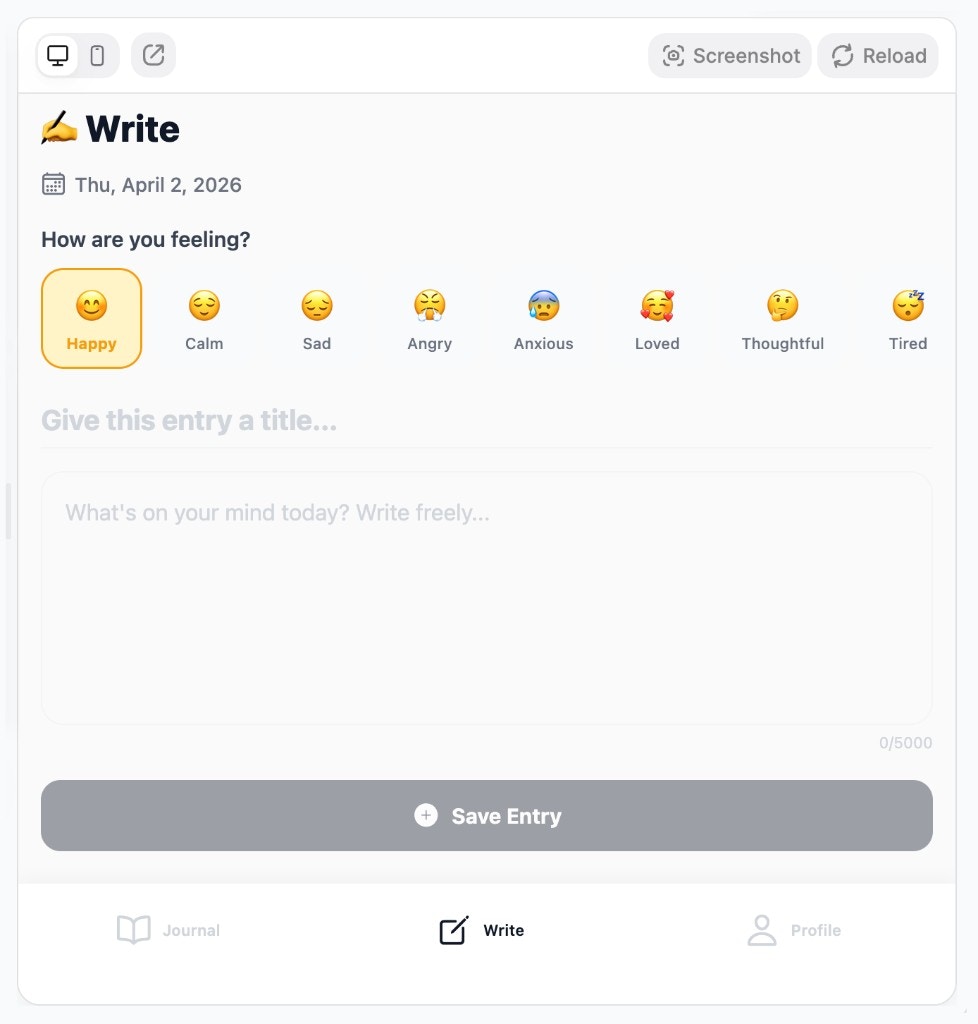
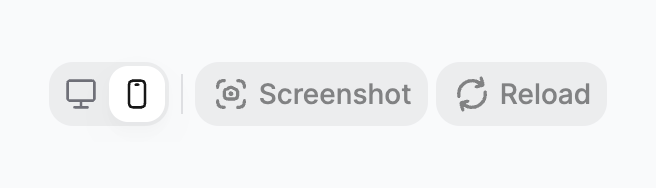 The web preview shows your app in a full-width browser layout. This is the best way to check responsive design, wide layouts, and desktop interactions.
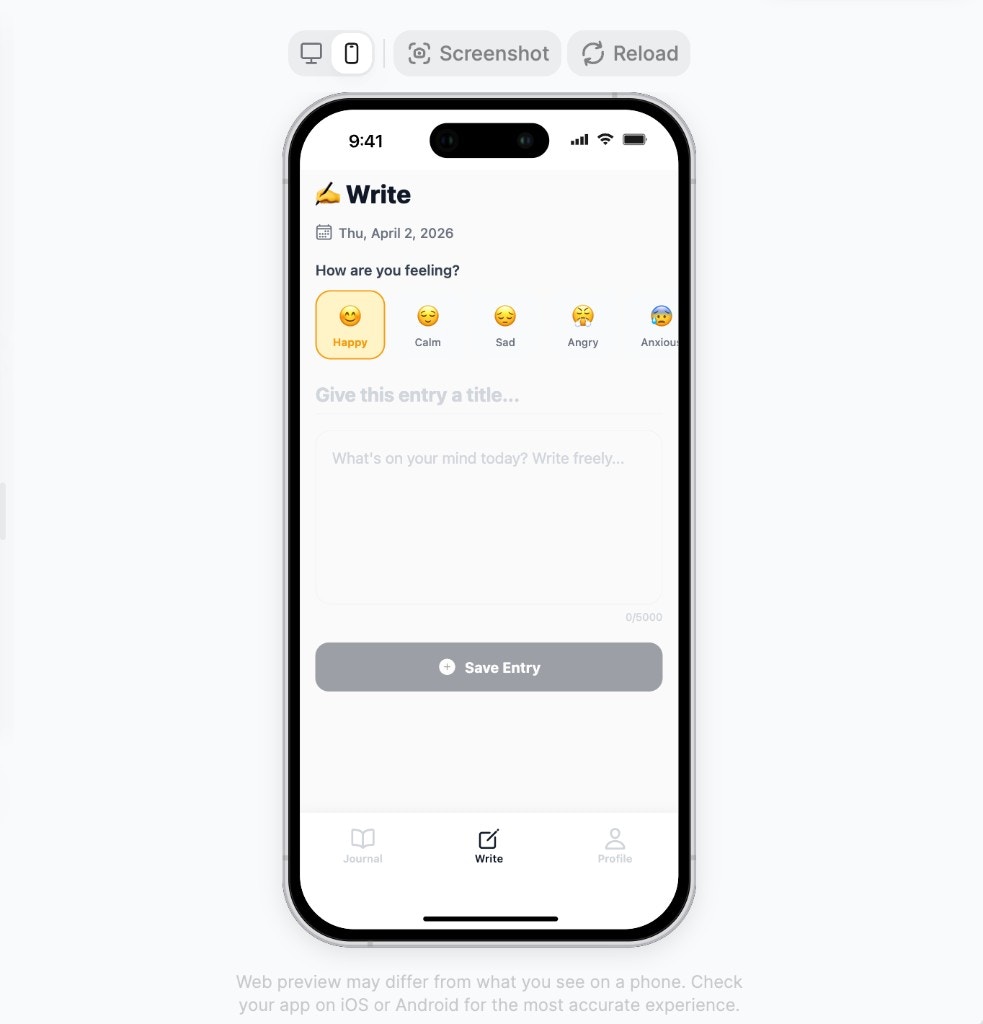
 The mobile preview wraps your app in an iPhone device frame so you can see exactly how it will appear on a phone. Use this to check touch targets, scroll behavior, and mobile navigation.
 Switch between views frequently as you build. Some layouts look great on web but need adjustment on mobile, and vice versa.
### Preview on your phone
For the most accurate testing, preview your app natively on your device.
Switch between views frequently as you build. Some layouts look great on web but need adjustment on mobile, and vice versa.
### Preview on your phone
For the most accurate testing, preview your app natively on your device.
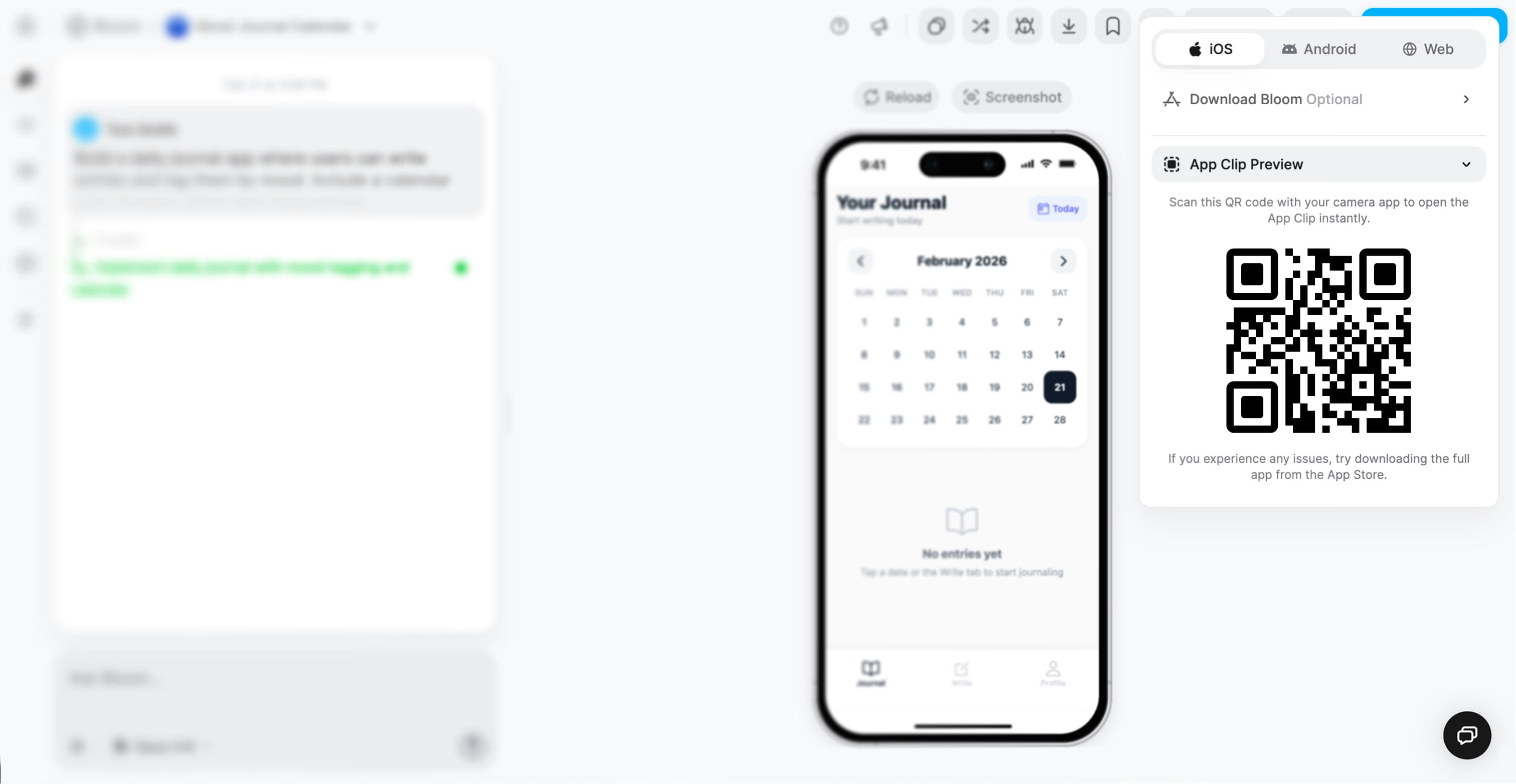 **App Clip Preview**
On iOS, Bloom uses **App Clips**, a native iOS feature that lets users run apps instantly without installation.
Open your iPhone camera and point it at the QR code in the preview modal.
iOS shows a banner to open the App Clip.
Your app runs natively with full performance and complete functionality. No download required.
**Progressive Web App**
On Android, shared apps run as progressive web apps (PWAs) in the browser.
Scan with your camera app or tap the share link directly.
The app loads in your default mobile browser. You can add it to your home screen for quick access.
**Browser Preview**
On desktop or any device with a web browser, apps open directly in the browser.
The app runs immediately in the browser with no installation or setup.
Keep your phone preview open while working. It's the best way to catch issues with touch targets, font sizes, or mobile-specific interactions.
## Making changes
### Using the chat
The chat interface is your primary way to modify your app:
**Example prompts:**
* "Add a dark mode toggle to the settings screen"
* "Let users filter the list by category"
* "Include a search bar at the top of the home screen"
* "Add push notifications when someone comments"
**Example prompts:**
* "Make the buttons larger and rounded"
* "Change the color scheme to blue and white"
* "Add icons to the navigation tabs"
* "Show user avatars as circles instead of squares"
**Example prompts:**
* "The save button isn't working—can you fix it?"
* "Users can't delete items from the list"
* "The app crashes when I tap the profile icon"
* "Photos aren't uploading correctly"
**Example prompts:**
* "Add validation so users can't submit empty forms"
* "Only show items created by the current user"
* "Send an email notification when someone signs up"
* "Automatically delete items older than 30 days"
Be specific in your requests. Instead of "make it better," describe exactly what you want: "increase the font size of headings to 24px."
### Monitoring changes
After requesting a change:
1. **Watch the generation progress** — Bloom shows what it's updating
2. **Preview automatically updates** — See your changes as soon as generation completes
3. **Check the logs** — Verify no new errors appeared
4. **Test the modified feature** — Confirm it works as expected
If a change doesn't work as you hoped, describe the issue in chat and Bloom will try again.
## Using backend tools
### Backend Dashboard
Monitor your app's performance and health:
Track failure rates, cache performance, and system status.
View tables, documents, and database schema.
See all Convex functions and their organization.
[Learn more about the Backend Dashboard →](/backend-dashboard)
### Logs
Debug issues and monitor activity:
* **Filter by Frontend/Backend** to isolate issues
* **Search for specific errors or events**
* **Track logs since last deploy** to focus on recent changes
[Learn more about Logs →](/logs)
### Authentication
Configure user sign-in:
* **Toggle OAuth providers** (Google, GitHub, Apple)
* **Add custom OAuth credentials** for branded login
* **Copy authorized origin URLs** for setup
[Learn more about Authentication →](/authentication)
### API Connections
Integrate external services:
* **Use auto-provisioned Bloom keys** for instant setup
* **Add your own API keys** for production use
* **Manage environment variables** securely
[Learn more about API Connections →](/api-connections)
## Troubleshooting
**Try these steps:**
1. Refresh the preview (click refresh icon or `Cmd/Ctrl + R`)
2. Clear browser cache and reload the page
3. Check if generation is still in progress
4. Look for errors in logs that might prevent loading
5. Try opening preview in a new tab
**Possible causes:**
* Generation encountered an error (check logs)
* Request was too vague (try being more specific)
* Conflicting with existing code (describe the issue)
* Browser cache needs clearing
If stuck, describe what you attempted and ask Bloom to try a different approach.
**Check:**
* You're signed in to the correct account
* Your plan includes backend dashboard access
* The sidebar is expanded (click hamburger menu if collapsed)
* No browser extensions are blocking content
**Performance tips:**
1. Check Backend Dashboard for high failure rates
2. Review logs for slow queries or functions
3. Reduce number of database queries on each screen
4. Optimize image sizes before uploading
5. Consider pagination for long lists
## What's next?
Learn how to create and iterate on apps from your phone.
Generate links and QR codes to share your app instantly.
Dive deeper into monitoring and managing your backend.
Ready to publish? Learn how to deploy to app stores.
**App Clip Preview**
On iOS, Bloom uses **App Clips**, a native iOS feature that lets users run apps instantly without installation.
Open your iPhone camera and point it at the QR code in the preview modal.
iOS shows a banner to open the App Clip.
Your app runs natively with full performance and complete functionality. No download required.
**Progressive Web App**
On Android, shared apps run as progressive web apps (PWAs) in the browser.
Scan with your camera app or tap the share link directly.
The app loads in your default mobile browser. You can add it to your home screen for quick access.
**Browser Preview**
On desktop or any device with a web browser, apps open directly in the browser.
The app runs immediately in the browser with no installation or setup.
Keep your phone preview open while working. It's the best way to catch issues with touch targets, font sizes, or mobile-specific interactions.
## Making changes
### Using the chat
The chat interface is your primary way to modify your app:
**Example prompts:**
* "Add a dark mode toggle to the settings screen"
* "Let users filter the list by category"
* "Include a search bar at the top of the home screen"
* "Add push notifications when someone comments"
**Example prompts:**
* "Make the buttons larger and rounded"
* "Change the color scheme to blue and white"
* "Add icons to the navigation tabs"
* "Show user avatars as circles instead of squares"
**Example prompts:**
* "The save button isn't working—can you fix it?"
* "Users can't delete items from the list"
* "The app crashes when I tap the profile icon"
* "Photos aren't uploading correctly"
**Example prompts:**
* "Add validation so users can't submit empty forms"
* "Only show items created by the current user"
* "Send an email notification when someone signs up"
* "Automatically delete items older than 30 days"
Be specific in your requests. Instead of "make it better," describe exactly what you want: "increase the font size of headings to 24px."
### Monitoring changes
After requesting a change:
1. **Watch the generation progress** — Bloom shows what it's updating
2. **Preview automatically updates** — See your changes as soon as generation completes
3. **Check the logs** — Verify no new errors appeared
4. **Test the modified feature** — Confirm it works as expected
If a change doesn't work as you hoped, describe the issue in chat and Bloom will try again.
## Using backend tools
### Backend Dashboard
Monitor your app's performance and health:
Track failure rates, cache performance, and system status.
View tables, documents, and database schema.
See all Convex functions and their organization.
[Learn more about the Backend Dashboard →](/backend-dashboard)
### Logs
Debug issues and monitor activity:
* **Filter by Frontend/Backend** to isolate issues
* **Search for specific errors or events**
* **Track logs since last deploy** to focus on recent changes
[Learn more about Logs →](/logs)
### Authentication
Configure user sign-in:
* **Toggle OAuth providers** (Google, GitHub, Apple)
* **Add custom OAuth credentials** for branded login
* **Copy authorized origin URLs** for setup
[Learn more about Authentication →](/authentication)
### API Connections
Integrate external services:
* **Use auto-provisioned Bloom keys** for instant setup
* **Add your own API keys** for production use
* **Manage environment variables** securely
[Learn more about API Connections →](/api-connections)
## Troubleshooting
**Try these steps:**
1. Refresh the preview (click refresh icon or `Cmd/Ctrl + R`)
2. Clear browser cache and reload the page
3. Check if generation is still in progress
4. Look for errors in logs that might prevent loading
5. Try opening preview in a new tab
**Possible causes:**
* Generation encountered an error (check logs)
* Request was too vague (try being more specific)
* Conflicting with existing code (describe the issue)
* Browser cache needs clearing
If stuck, describe what you attempted and ask Bloom to try a different approach.
**Check:**
* You're signed in to the correct account
* Your plan includes backend dashboard access
* The sidebar is expanded (click hamburger menu if collapsed)
* No browser extensions are blocking content
**Performance tips:**
1. Check Backend Dashboard for high failure rates
2. Review logs for slow queries or functions
3. Reduce number of database queries on each screen
4. Optimize image sizes before uploading
5. Consider pagination for long lists
## What's next?
Learn how to create and iterate on apps from your phone.
Generate links and QR codes to share your app instantly.
Dive deeper into monitoring and managing your backend.
Ready to publish? Learn how to deploy to app stores.