> ## Documentation Index
> Fetch the complete documentation index at: https://docs.bloom.diy/llms.txt
> Use this file to discover all available pages before exploring further.
# Building Your First App
> A step-by-step guide to creating your first full-stack app with Bloom.
Go from idea to working app in minutes. No coding required.
Use the full Bloom workspace at [bloom.diy](https://bloom.diy) in your browser.
Download the [Bloom iOS app](https://apps.apple.com/us/app/bloom-build-apps-with-ai/id6740775687) and create apps from your phone.
## Built on the best
Bloom is built on two industry-leading technologies for modern app development:
### Your frontend framework
Your app's interface is powered by [Expo's React Native
framework](https://docs.expo.dev), so every Bloom app runs smoothly on iOS, Android, and the web from a single codebase.
**Why Expo?**
* Cross-platform by default
* Native performance
* Hot reload during development
* Easy updates without app store resubmission
### Your backend infrastructure
[Convex](https://docs.convex.dev) handles your app logic, database, and real-time updates. It includes built-in hosting, functions, and storage. No need to set up servers, connect APIs, or manage credentials.
**Why Convex?**
* Real-time data sync
* Type-safe queries
* Built-in caching and optimization
* Serverless and scalable
**The power of integration:** By pre-wiring Expo and Convex together, Bloom eliminates the complexity of connecting frontend to backend, configuring authentication, or managing deployment pipelines.
## What's included in every Bloom app
Each new Bloom project automatically includes:
Expo + Convex projects pre-wired and synced. Your frontend and backend communicate seamlessly from day one.
OAuth built-in with [Google](https://developers.google.com/identity), [GitHub](https://docs.github.com/en/apps/oauth-apps), [Apple
ID](https://developer.apple.com/sign-in-with-apple/), and more. Toggle between Bloom-managed credentials or bring your own.
[**Learn more →**](/authentication)
Auto-provisioned Bloom keys for instant connections to AI models, analytics, and external services. Or bring your own API keys.
[**Learn more →**](/api-connections)
Monitor queries, cache health, and performance in real time without leaving Bloom.
[**Learn more →**](/backend-dashboard)
Track frontend and backend logs in one unified view. Filter by severity, source, and time.
[**Learn more →**](/logs)
Manage configuration securely right inside your project. No external configuration files needed.
***
## Create your first app
Follow these steps to build your first Bloom app from the web. The entire process takes less than 5 minutes.
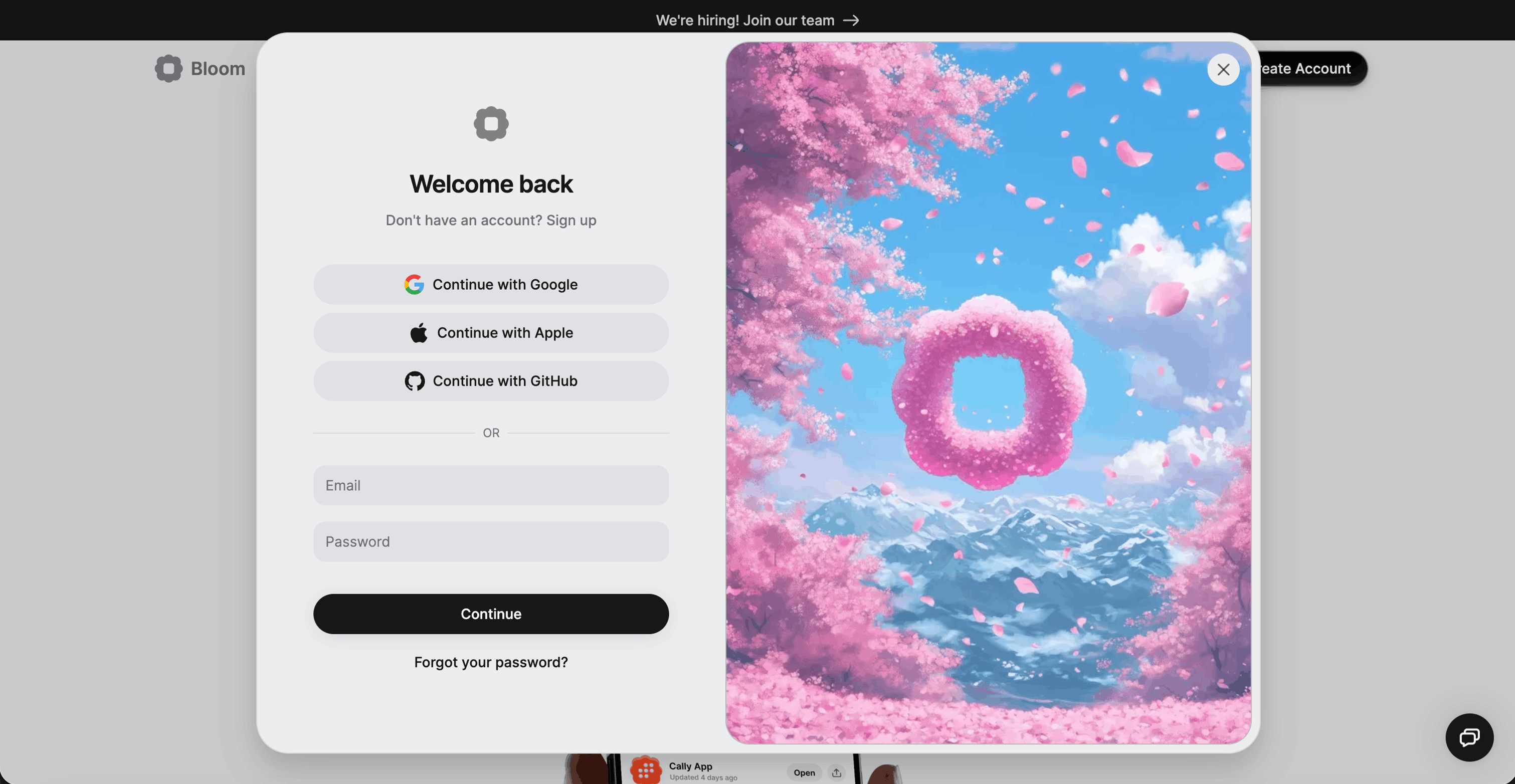
Go to [bloom.diy](https://bloom.diy) and sign in with Google, GitHub, or email.
If you don't have an account, you'll be prompted to create one.
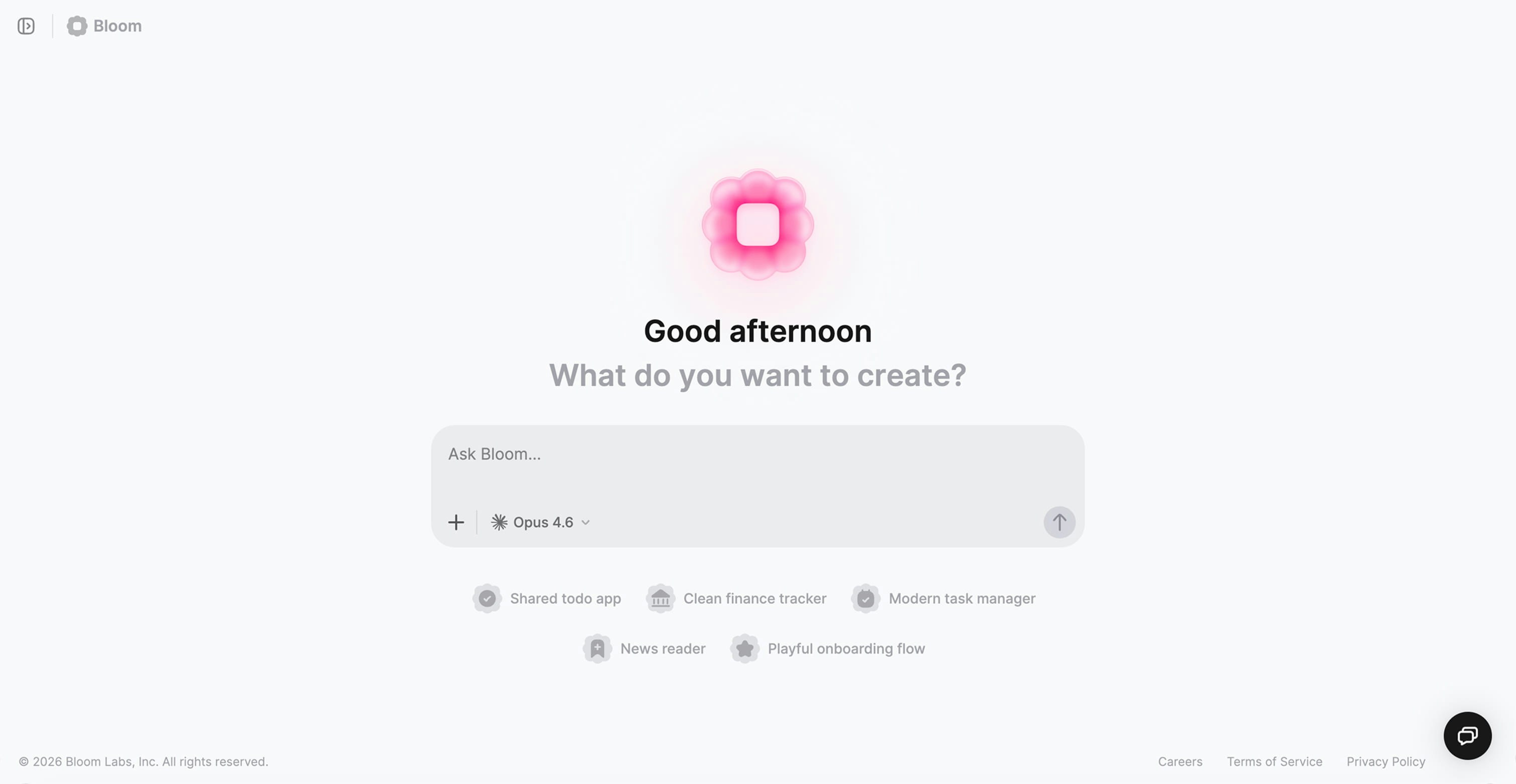
 Once you're signed in, you'll see the prompt field in the center of the screen asking "What do you want to create?"
Describe your app idea in plain language. Be specific about the main purpose and key features you want.
Once you're signed in, you'll see the prompt field in the center of the screen asking "What do you want to create?"
Describe your app idea in plain language. Be specific about the main purpose and key features you want.
 **A good first prompt includes:**
* **Who** is using the app and in what situation
* **What happens** when they use it (the journey)
* **How it should feel** (the vibe)
[**Learn about the D.N.A. prompting framework →**](/prompting-best-practices#the-dna-prompting-framework)
**Journal app:**
```
I'm someone who wants to reflect on my day before bed. When I
open the app, I see a simple prompt asking how my day went. I
write a few sentences, tag my mood, and optionally add a photo.
A calendar shows me which days I've journaled. The vibe should
feel calm, private, and encouraging.
```
**Recipe app:**
```
I'm a home cook who finds recipes online but loses track of them.
When I find a recipe I like, I can save it with a photo and
organize it into collections like "weeknight dinners" or "meal
prep." Before grocery shopping, I can quickly see what ingredients
I need. It should feel organized and appetizing.
```
**Book club app:**
```
I run a small book club with friends. We pick a book, and as we
read, we can share thoughts and reactions in a thread without
spoiling ahead. I can see everyone's reading progress. When we
finish, we vote on what to read next. Should feel cozy and social,
like a group chat about books.
```
**Habit tracker:**
```
I'm trying to build better habits but forget to do them. Each
morning I see today's habits and check them off as I go. When I
complete one, it feels satisfying and I can see my streak growing.
At the end of the week, I see a simple chart of my progress. The
vibe should be motivating but not overwhelming.
```
**Avoid prompts that are too vague or too technical.** "Make an app" doesn't give Bloom context. "Build a database with CRUD operations" is too technical. Describe the user experience instead.
After you submit your prompt, Bloom creates your full-stack app. This typically takes 1-3 minutes depending on complexity.
**A good first prompt includes:**
* **Who** is using the app and in what situation
* **What happens** when they use it (the journey)
* **How it should feel** (the vibe)
[**Learn about the D.N.A. prompting framework →**](/prompting-best-practices#the-dna-prompting-framework)
**Journal app:**
```
I'm someone who wants to reflect on my day before bed. When I
open the app, I see a simple prompt asking how my day went. I
write a few sentences, tag my mood, and optionally add a photo.
A calendar shows me which days I've journaled. The vibe should
feel calm, private, and encouraging.
```
**Recipe app:**
```
I'm a home cook who finds recipes online but loses track of them.
When I find a recipe I like, I can save it with a photo and
organize it into collections like "weeknight dinners" or "meal
prep." Before grocery shopping, I can quickly see what ingredients
I need. It should feel organized and appetizing.
```
**Book club app:**
```
I run a small book club with friends. We pick a book, and as we
read, we can share thoughts and reactions in a thread without
spoiling ahead. I can see everyone's reading progress. When we
finish, we vote on what to read next. Should feel cozy and social,
like a group chat about books.
```
**Habit tracker:**
```
I'm trying to build better habits but forget to do them. Each
morning I see today's habits and check them off as I go. When I
complete one, it feels satisfying and I can see my streak growing.
At the end of the week, I see a simple chart of my progress. The
vibe should be motivating but not overwhelming.
```
**Avoid prompts that are too vague or too technical.** "Make an app" doesn't give Bloom context. "Build a database with CRUD operations" is too technical. Describe the user experience instead.
After you submit your prompt, Bloom creates your full-stack app. This typically takes 1-3 minutes depending on complexity.
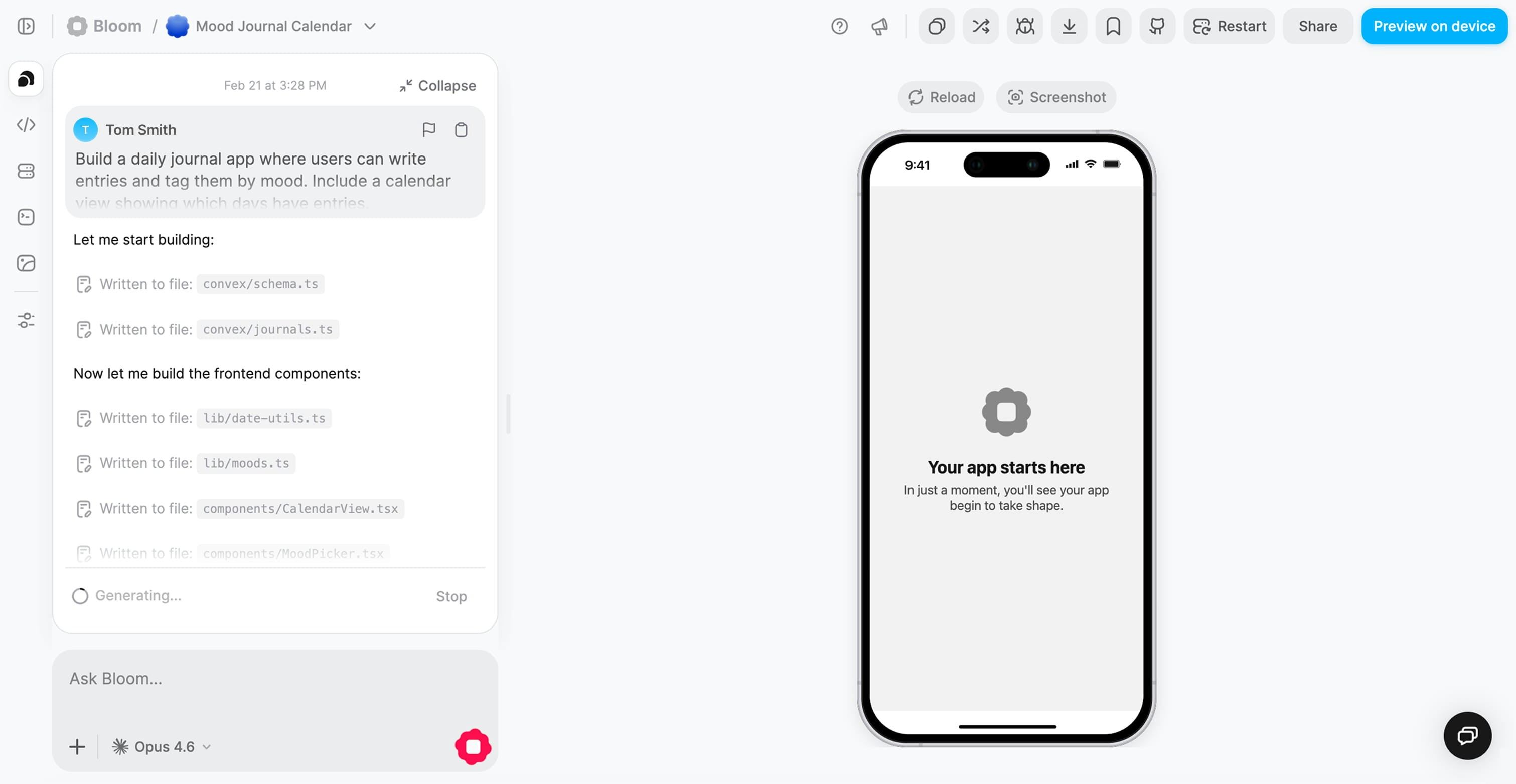 **During generation, Bloom is:**
* Creating your **frontend** with Expo (screens, navigation, UI components)
* Setting up your **backend** with Convex (database schema, API endpoints, functions)
* Configuring **authentication** (ready to enable OAuth providers)
* Connecting everything together automatically
You can watch the progress in real time. Bloom shows you what it's building as it goes.
Once generation completes, your app appears in the live preview panel. You can interact with it immediately.
**During generation, Bloom is:**
* Creating your **frontend** with Expo (screens, navigation, UI components)
* Setting up your **backend** with Convex (database schema, API endpoints, functions)
* Configuring **authentication** (ready to enable OAuth providers)
* Connecting everything together automatically
You can watch the progress in real time. Bloom shows you what it's building as it goes.
Once generation completes, your app appears in the live preview panel. You can interact with it immediately.
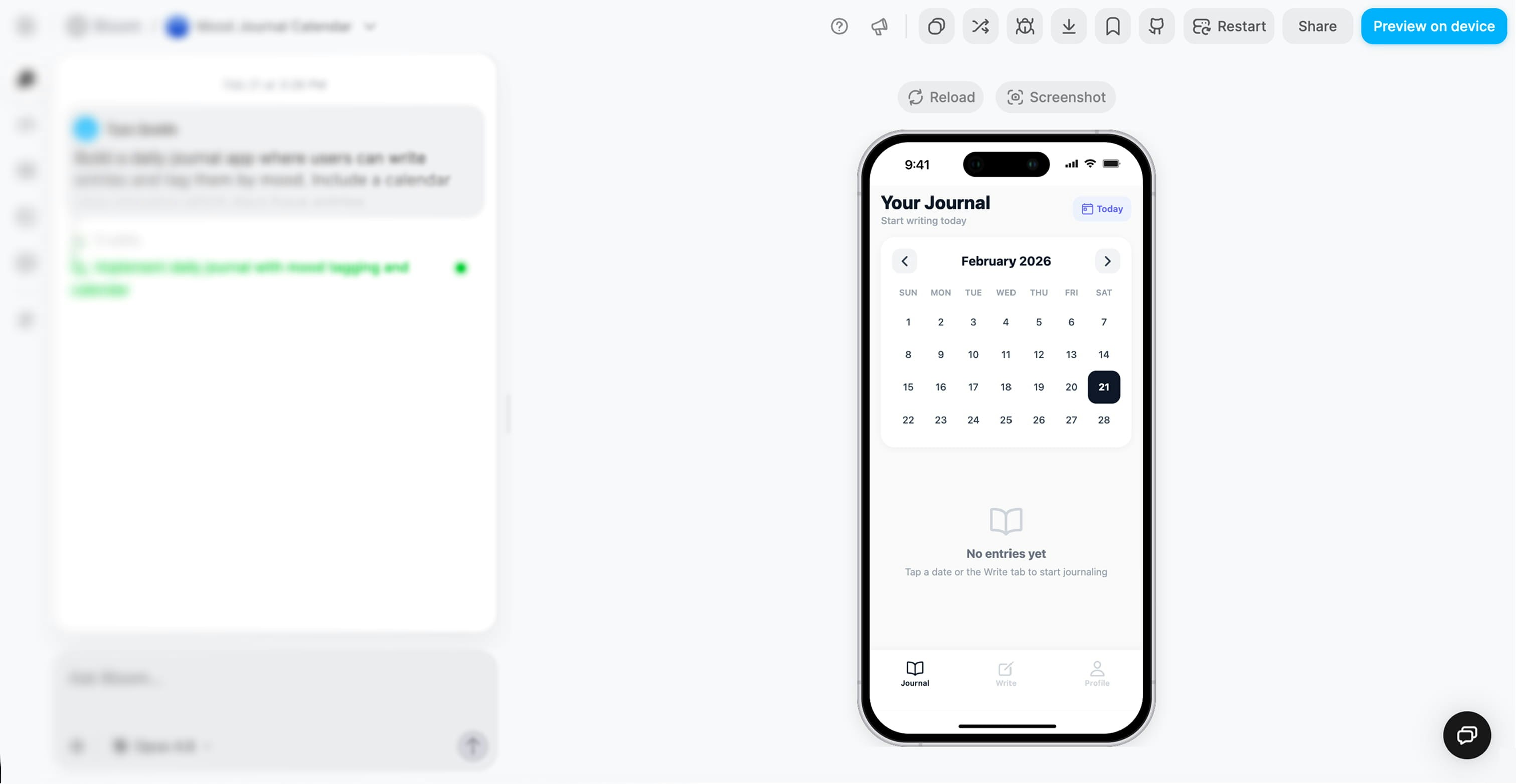 **Test your app by:**
Clicking through all the screens
Testing core features (create, edit, delete)
Trying the user flows you described
Noting what works and what needs refinement
Use the **web/mobile toggle** in the preview toolbar to switch between a browser layout and a phone device frame. [**Learn more about the preview switcher →**](/building-from-web#switching-between-web-and-mobile-preview)
### Preview on your phone
For the most accurate testing, preview on your actual device:
1. Click the **QR code icon** in the preview toolbar
2. Scan with your phone's camera
3. Your app opens natively on your device
**Test your app by:**
Clicking through all the screens
Testing core features (create, edit, delete)
Trying the user flows you described
Noting what works and what needs refinement
Use the **web/mobile toggle** in the preview toolbar to switch between a browser layout and a phone device frame. [**Learn more about the preview switcher →**](/building-from-web#switching-between-web-and-mobile-preview)
### Preview on your phone
For the most accurate testing, preview on your actual device:
1. Click the **QR code icon** in the preview toolbar
2. Scan with your phone's camera
3. Your app opens natively on your device
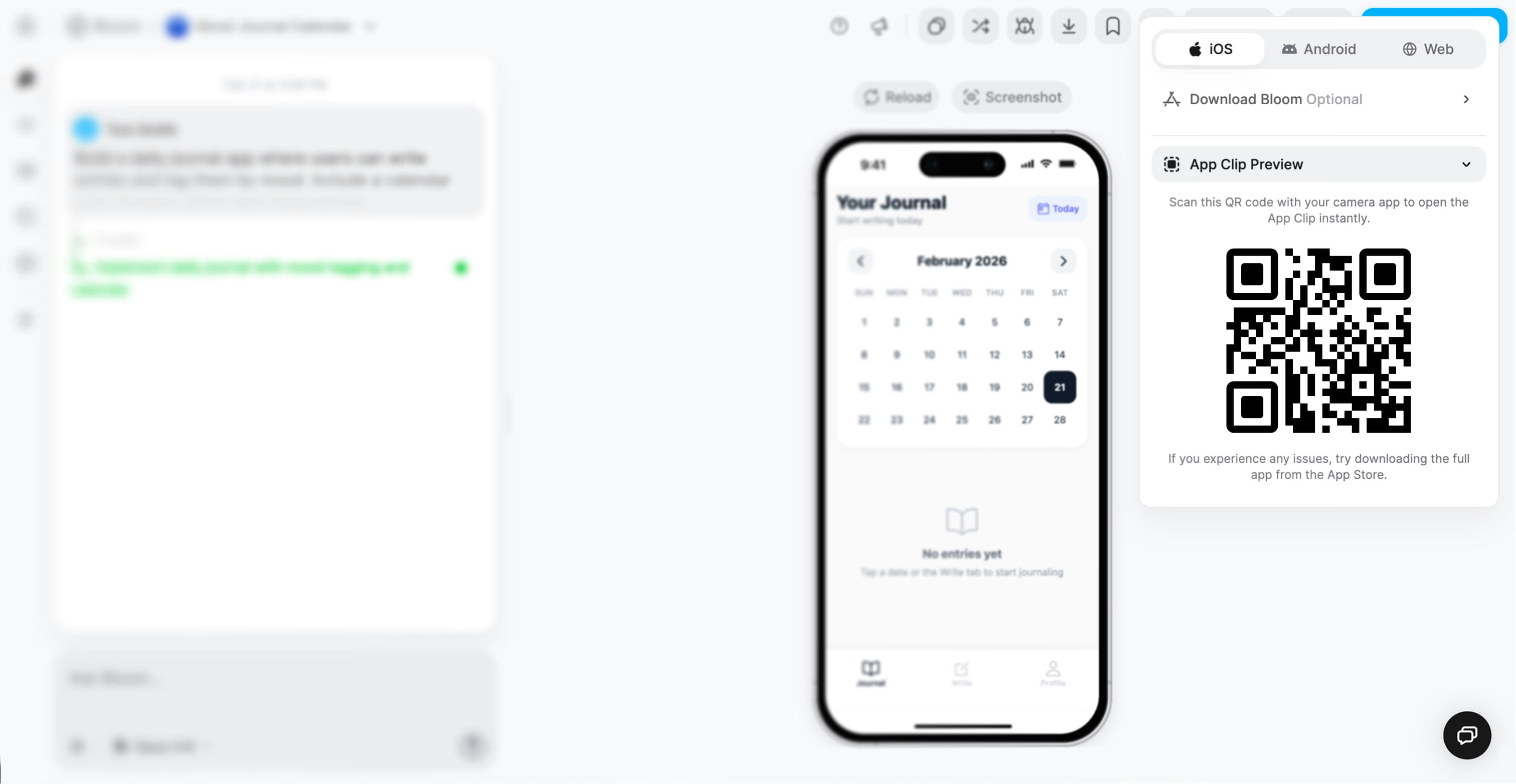 Keep your phone preview open while working. It's the best way to catch issues with touch targets, font sizes, or mobile-specific interactions.
Your first version is a starting point. Use the chat to refine and add features.
Keep your phone preview open while working. It's the best way to catch issues with touch targets, font sizes, or mobile-specific interactions.
Your first version is a starting point. Use the chat to refine and add features.
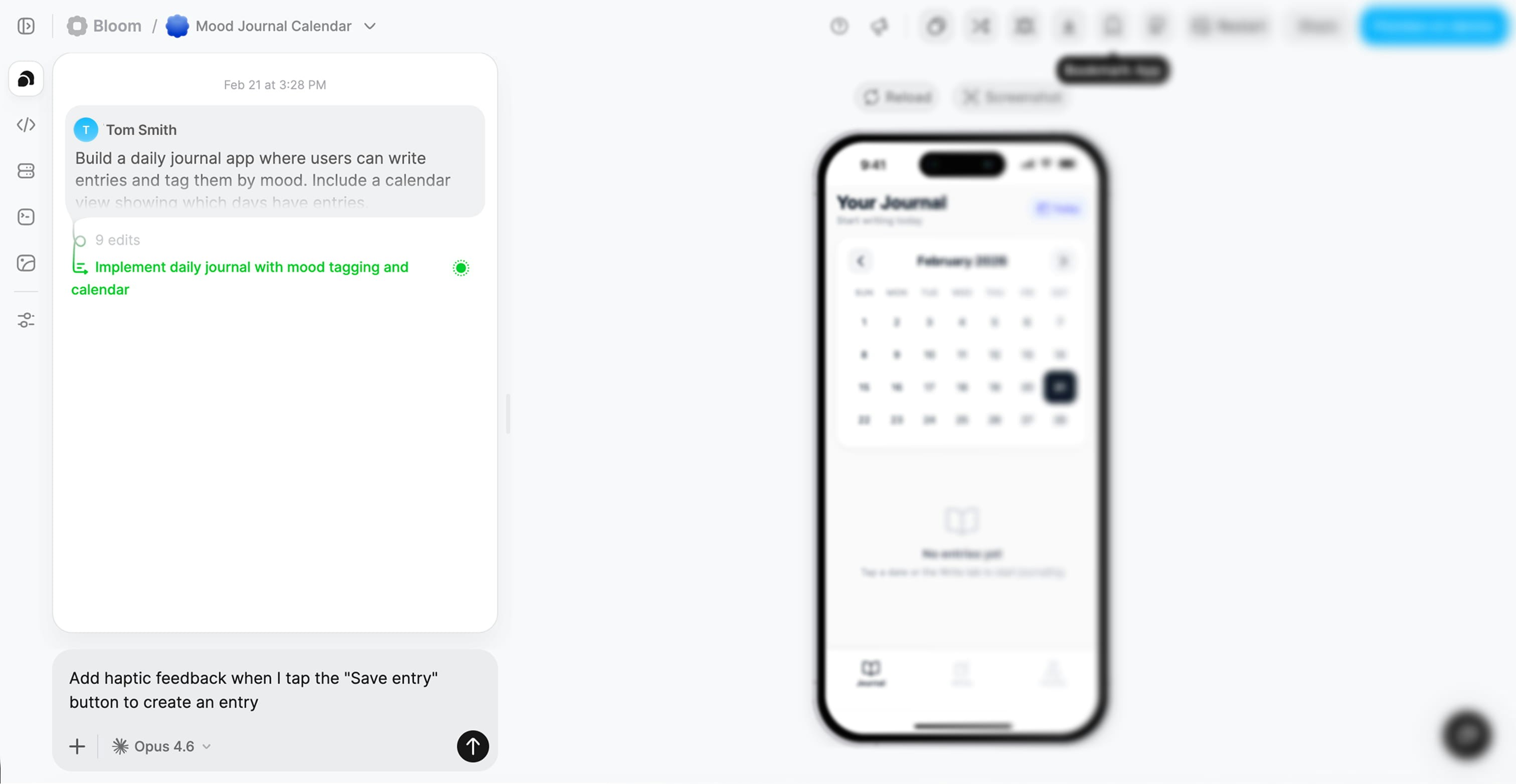 **Example refinement prompts:**
* "When I'm on the home screen, I want to quickly search for items without scrolling through everything"
* "I want to personalize my profile with a photo so other users recognize me"
* "At night I use the app in bed. Add a dark mode so it's easier on my eyes"
* "I want to know when someone interacts with my content, even when I'm not in the app"
* "The buttons feel too small and hard to tap. Make them larger and friendlier"
* "I want a calmer color scheme. Try soft blues and whites"
* "The navigation tabs would be clearer with icons"
* "User avatars should feel more personal. Show them as circles"
* "When I tap save, nothing happens. I expected my changes to be saved"
* "I can't figure out how to delete items from my list"
* "I selected a photo to upload but it never appears"
* "The app crashes when I tap the profile icon. I was trying to view my profile"
* "I only want to see items I created, not everyone's items"
* "Users are submitting empty forms. Prevent that and show a helpful message"
* "The list feels random. Show newest items at the top"
* "Old items are cluttering the list. Automatically clean up items older than 30 days"
**Iteration is normal.** Expect your first version to be about 70% of what you want. Use chat to refine until it matches your vision.
***
## Tips for your first prompt
The quality of your initial prompt directly affects the quality of your generated app. Here's how to write effective prompts:
### Focus on the user experience, not technical specs
Bloom is a full-stack app builder, not a code assistant. Prompt like you're writing a product brief, not a technical spec.
```
I'm someone who wants to reflect on my day before bed. When I
open the app, I see a simple prompt asking how my day went. I
write a few sentences, tag my mood, and can add a photo. A
calendar shows which days I've journaled so I can see my
consistency. It should feel calm and private.
```
This prompt describes:
* **Who** is using it (someone reflecting before bed)
* **What happens** (open, write, tag, view calendar)
* **How it feels** (calm and private)
```
Make a journal app with CRUD operations for entries
```
This is too technical. Bloom already knows how to build databases. Tell it about the experience instead.
### Start simple, then expand
Don't try to build everything at once. Start with the core experience and add more through iteration.
**First prompt:**
```
I'm someone who keeps forgetting tasks. When I open the app, I
see today's tasks front and center. I can quickly add a new task
and check things off as I go. Completed tasks disappear so I feel
progress. Keep it minimal and focused.
```
**Then iterate:**
* "I want to set due dates so I know when things are urgent"
* "Let me mark tasks as high, medium, or low priority"
* "Add a view that only shows what's due today"
```
Build a complete project management tool with tasks, subtasks,
due dates, priorities, recurring tasks, team assignments,
comments, file attachments, time tracking, reports, calendar
sync, and notifications.
```
This is too complex for an initial prompt. Break it into smaller pieces.
### Set the vibe
Tell Bloom how the app should feel emotionally. This influences design, animations, and overall experience.
```
I'm a home cook saving recipes I find online. I want to snap a
photo and save recipes into collections like "quick weeknight
meals." Before grocery shopping, I can see all the ingredients
I need. Should feel organized and appetizing, like a beautiful
cookbook.
```
"Organized and appetizing, like a beautiful cookbook" helps Bloom make design decisions.
```
Recipe database with relational data and search functionality
```
This is technical jargon with no emotional context. Describe what the user does and how it should feel.
[**Learn more about prompting →**](/prompting-best-practices)
***
## What to expect
### Your first version
Your generated app will typically include:
* Working screens and navigation
* Basic CRUD functionality (create, read, update, delete)
* Database schema and API endpoints
* Authentication setup (ready to enable)
* Responsive design for mobile and web
### What you'll refine
Plan to iterate on:
* Visual polish and styling
* Edge cases and validation
* Additional features beyond the core
* Performance optimization for large data sets
**The goal is progress, not perfection.** Get a working version quickly, then refine through conversation.
***
## Next steps
Detailed guide to the full web workspace, including backend tools and debugging.
Learn how to create and iterate on apps directly from your phone.
Explore examples and use cases for inspiration.
Advanced techniques for getting better results from Bloom.
**Example refinement prompts:**
* "When I'm on the home screen, I want to quickly search for items without scrolling through everything"
* "I want to personalize my profile with a photo so other users recognize me"
* "At night I use the app in bed. Add a dark mode so it's easier on my eyes"
* "I want to know when someone interacts with my content, even when I'm not in the app"
* "The buttons feel too small and hard to tap. Make them larger and friendlier"
* "I want a calmer color scheme. Try soft blues and whites"
* "The navigation tabs would be clearer with icons"
* "User avatars should feel more personal. Show them as circles"
* "When I tap save, nothing happens. I expected my changes to be saved"
* "I can't figure out how to delete items from my list"
* "I selected a photo to upload but it never appears"
* "The app crashes when I tap the profile icon. I was trying to view my profile"
* "I only want to see items I created, not everyone's items"
* "Users are submitting empty forms. Prevent that and show a helpful message"
* "The list feels random. Show newest items at the top"
* "Old items are cluttering the list. Automatically clean up items older than 30 days"
**Iteration is normal.** Expect your first version to be about 70% of what you want. Use chat to refine until it matches your vision.
***
## Tips for your first prompt
The quality of your initial prompt directly affects the quality of your generated app. Here's how to write effective prompts:
### Focus on the user experience, not technical specs
Bloom is a full-stack app builder, not a code assistant. Prompt like you're writing a product brief, not a technical spec.
```
I'm someone who wants to reflect on my day before bed. When I
open the app, I see a simple prompt asking how my day went. I
write a few sentences, tag my mood, and can add a photo. A
calendar shows which days I've journaled so I can see my
consistency. It should feel calm and private.
```
This prompt describes:
* **Who** is using it (someone reflecting before bed)
* **What happens** (open, write, tag, view calendar)
* **How it feels** (calm and private)
```
Make a journal app with CRUD operations for entries
```
This is too technical. Bloom already knows how to build databases. Tell it about the experience instead.
### Start simple, then expand
Don't try to build everything at once. Start with the core experience and add more through iteration.
**First prompt:**
```
I'm someone who keeps forgetting tasks. When I open the app, I
see today's tasks front and center. I can quickly add a new task
and check things off as I go. Completed tasks disappear so I feel
progress. Keep it minimal and focused.
```
**Then iterate:**
* "I want to set due dates so I know when things are urgent"
* "Let me mark tasks as high, medium, or low priority"
* "Add a view that only shows what's due today"
```
Build a complete project management tool with tasks, subtasks,
due dates, priorities, recurring tasks, team assignments,
comments, file attachments, time tracking, reports, calendar
sync, and notifications.
```
This is too complex for an initial prompt. Break it into smaller pieces.
### Set the vibe
Tell Bloom how the app should feel emotionally. This influences design, animations, and overall experience.
```
I'm a home cook saving recipes I find online. I want to snap a
photo and save recipes into collections like "quick weeknight
meals." Before grocery shopping, I can see all the ingredients
I need. Should feel organized and appetizing, like a beautiful
cookbook.
```
"Organized and appetizing, like a beautiful cookbook" helps Bloom make design decisions.
```
Recipe database with relational data and search functionality
```
This is technical jargon with no emotional context. Describe what the user does and how it should feel.
[**Learn more about prompting →**](/prompting-best-practices)
***
## What to expect
### Your first version
Your generated app will typically include:
* Working screens and navigation
* Basic CRUD functionality (create, read, update, delete)
* Database schema and API endpoints
* Authentication setup (ready to enable)
* Responsive design for mobile and web
### What you'll refine
Plan to iterate on:
* Visual polish and styling
* Edge cases and validation
* Additional features beyond the core
* Performance optimization for large data sets
**The goal is progress, not perfection.** Get a working version quickly, then refine through conversation.
***
## Next steps
Detailed guide to the full web workspace, including backend tools and debugging.
Learn how to create and iterate on apps directly from your phone.
Explore examples and use cases for inspiration.
Advanced techniques for getting better results from Bloom.