> ## Documentation Index
> Fetch the complete documentation index at: https://docs.bloom.diy/llms.txt
> Use this file to discover all available pages before exploring further.
# Bloom Changelog
> Latest updates and improvements to Bloom.
### Build Web Apps in Bloom
Bloom now builds for the web, not just mobile. Every app you create works on iOS, Android, and the web from a single codebase. Go mobile-first, web-first, or both.
The preview panel now includes a **web/mobile toggle** so you can switch between a browser layout and a phone device frame while you build.
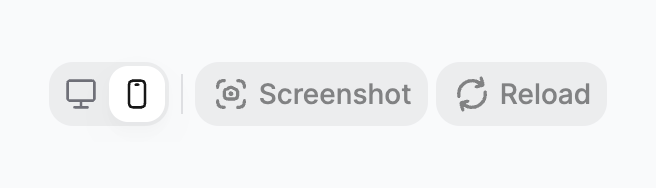 If you're building something people will use on a computer, switch to web preview and make sure the layout takes advantage of the extra space. Available now for all users on web.
[**Start building for web →**](https://bloom.diy)
### Opus 4.6 is Now the Default Model
We've upgraded the default model for building your Blooms to Opus 4.6 and it's available to everyone, right now.
No settings to change, no plan required. When you describe your app, Bloom is already using Opus 4.6 under the hood.
**What this means for you**\
Opus 4.6 is meaningfully smarter at understanding what you're trying to build. Expect better first pass results, more accurate UI layouts, and fewer rounds of back and forth to get your app where you want it.
**How to try it**\
Open Bloom and start describing something. That's it, you're already using it.
If you notice a difference (good or bad), let us know. We read everything.
[**Open Bloom →**](https://bloom.diy)
### Set a Custom Icon for Your Bloom App
You can now set your own icon for any app you build in Bloom.
Upload an image from your files or choose from the built-in options in the app settings. The icon shows up on your home screen when the app is installed, in the Bloom editor when browsing your apps, and anywhere the app is shared.
If you're building something people will use on a computer, switch to web preview and make sure the layout takes advantage of the extra space. Available now for all users on web.
[**Start building for web →**](https://bloom.diy)
### Opus 4.6 is Now the Default Model
We've upgraded the default model for building your Blooms to Opus 4.6 and it's available to everyone, right now.
No settings to change, no plan required. When you describe your app, Bloom is already using Opus 4.6 under the hood.
**What this means for you**\
Opus 4.6 is meaningfully smarter at understanding what you're trying to build. Expect better first pass results, more accurate UI layouts, and fewer rounds of back and forth to get your app where you want it.
**How to try it**\
Open Bloom and start describing something. That's it, you're already using it.
If you notice a difference (good or bad), let us know. We read everything.
[**Open Bloom →**](https://bloom.diy)
### Set a Custom Icon for Your Bloom App
You can now set your own icon for any app you build in Bloom.
Upload an image from your files or choose from the built-in options in the app settings. The icon shows up on your home screen when the app is installed, in the Bloom editor when browsing your apps, and anywhere the app is shared.
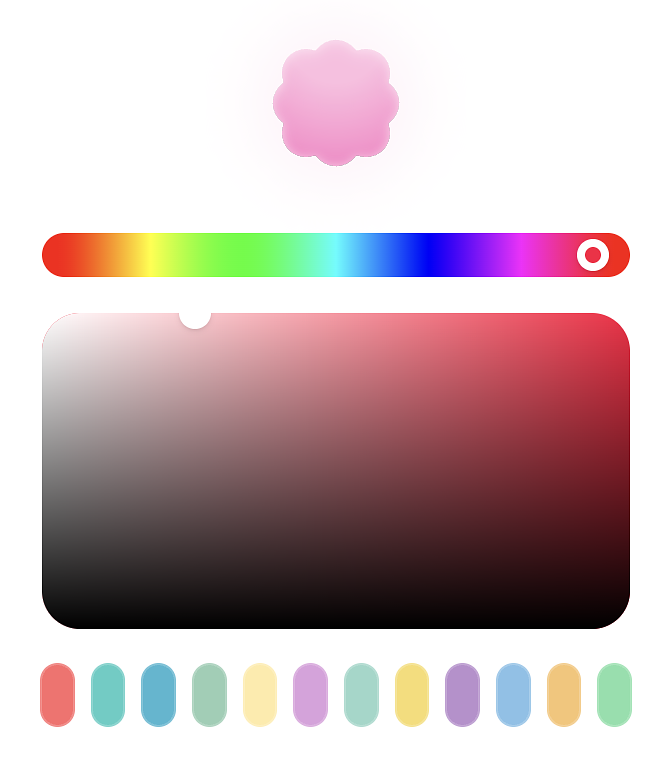 This is a small thing that makes your apps feel more finished. If you're building something you're going to share or use regularly, having a proper icon instead of a default placeholder makes a difference.
To set one: open your app settings and look for the icon section.
[**Update app icons →**](https://bloom.diy)
### The Agent Now Asks Before It Builds
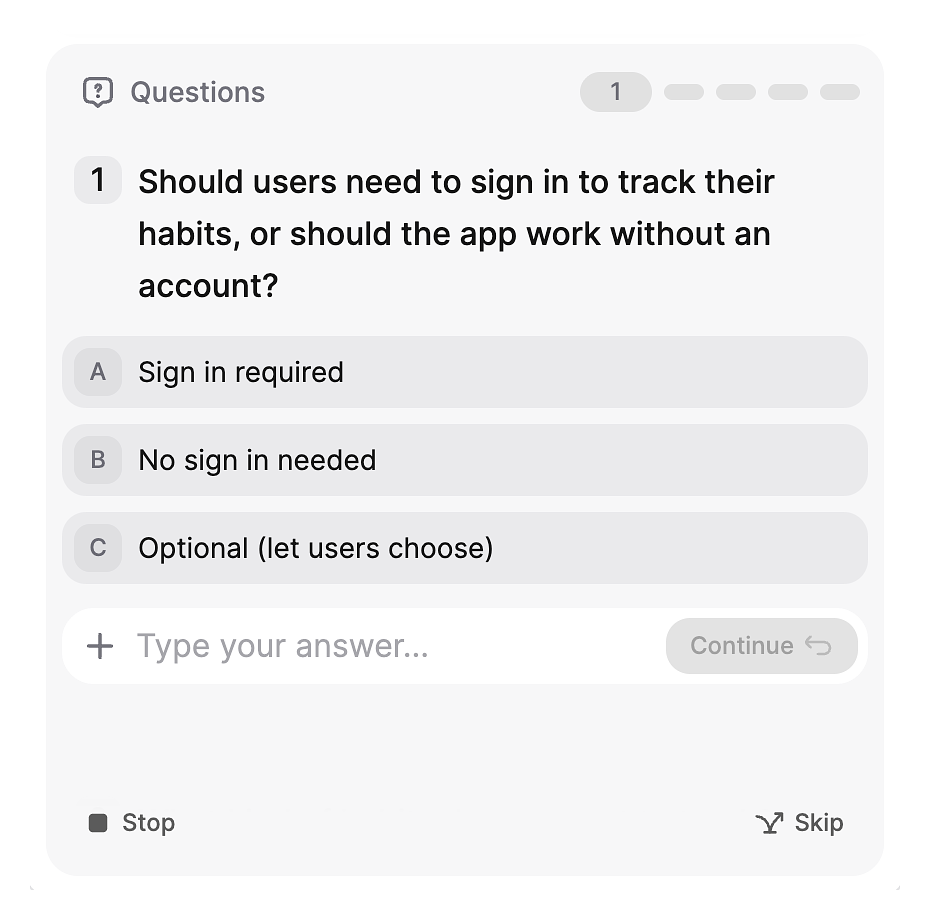
We've added a new step to how Bloom handles prompts. When you describe something and the agent needs more context to get it right, it now asks you a short set of clarifying questions before building.
You answer them, the agent uses your answers, and the result is closer to what you actually wanted on the first try.
This is a small thing that makes your apps feel more finished. If you're building something you're going to share or use regularly, having a proper icon instead of a default placeholder makes a difference.
To set one: open your app settings and look for the icon section.
[**Update app icons →**](https://bloom.diy)
### The Agent Now Asks Before It Builds
We've added a new step to how Bloom handles prompts. When you describe something and the agent needs more context to get it right, it now asks you a short set of clarifying questions before building.
You answer them, the agent uses your answers, and the result is closer to what you actually wanted on the first try.
 **How it works**\
The questions are short and specific. Multiple choice where possible, short text input when needed. It takes 20 to 30 seconds to answer a typical set.
The agent only asks when it genuinely needs to. Simple changes and clear prompts go straight to building as normal.
**Why we built it**\
The biggest source of wasted credits and frustration was the agent guessing wrong and having to redo work. This fixes the root cause: giving the agent the information it needs before it starts.
**Keyboard shortcuts**\
On web, you can use number keys to select multiple choice answers and Tab to move between questions without touching the mouse.
Human in the Loop is available to all users on web and iOS.
[**Experience a smarter Bloom →**](https://bloom.diy)
### Watch the Agent Write Code in Real Time
Code streaming is now live in Bloom.
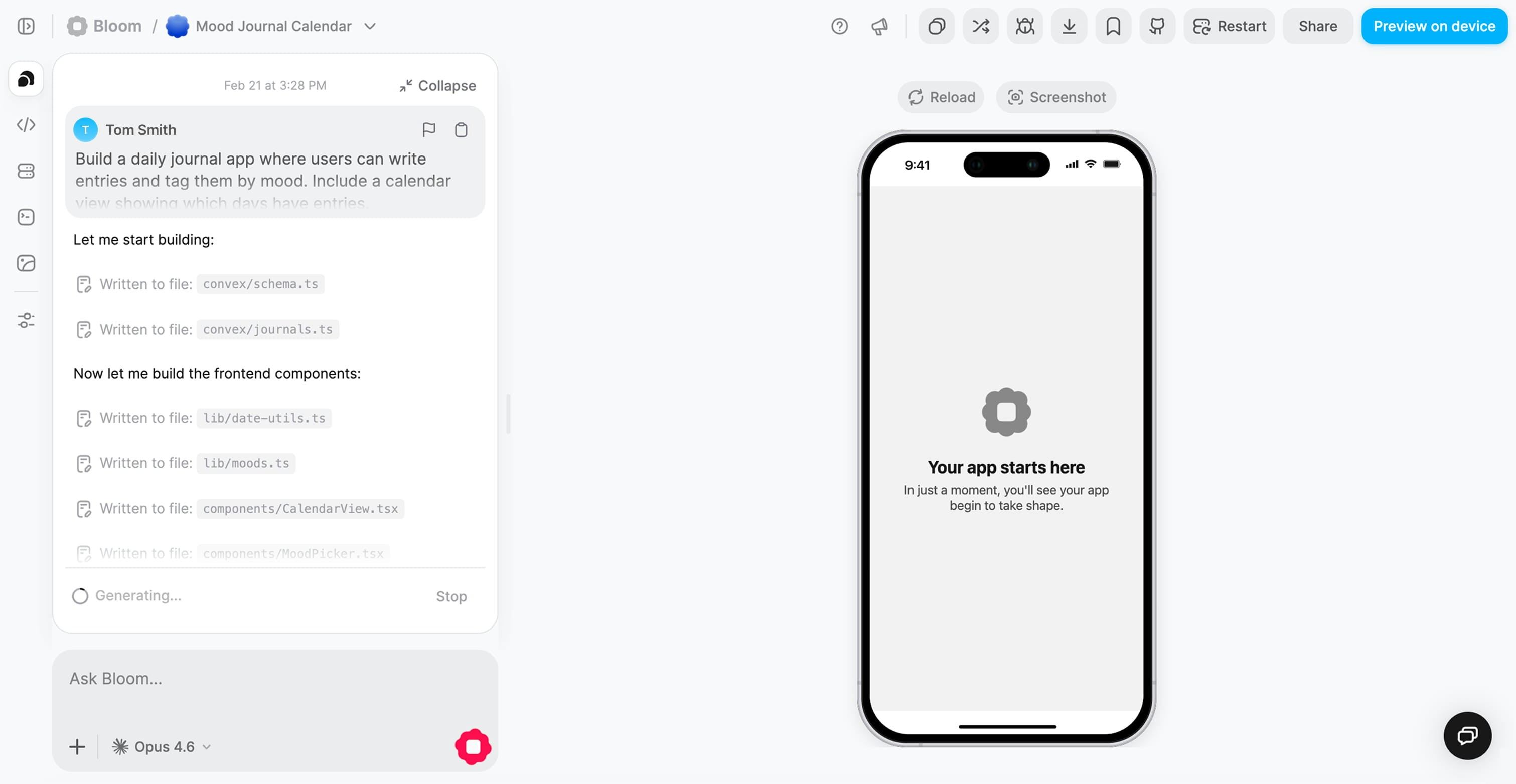
When the agent writes or edits a file, you can now see the code appear line by line as it happens. Previously you'd send a prompt and wait for the result. Now you can follow along as the agent works.
**How it works**\
The questions are short and specific. Multiple choice where possible, short text input when needed. It takes 20 to 30 seconds to answer a typical set.
The agent only asks when it genuinely needs to. Simple changes and clear prompts go straight to building as normal.
**Why we built it**\
The biggest source of wasted credits and frustration was the agent guessing wrong and having to redo work. This fixes the root cause: giving the agent the information it needs before it starts.
**Keyboard shortcuts**\
On web, you can use number keys to select multiple choice answers and Tab to move between questions without touching the mouse.
Human in the Loop is available to all users on web and iOS.
[**Experience a smarter Bloom →**](https://bloom.diy)
### Watch the Agent Write Code in Real Time
Code streaming is now live in Bloom.
When the agent writes or edits a file, you can now see the code appear line by line as it happens. Previously you'd send a prompt and wait for the result. Now you can follow along as the agent works.
 This makes a few things better:
**You know it's working**\
Long builds no longer feel like a black box. You can see progress in real time rather than waiting and wondering.
**You can catch problems earlier**\
If the agent starts writing something that looks wrong, you can stop it before it finishes and rephrase. No need to wait for the full result.
**It's just more satisfying**\
Watching code appear and an app take shape is a better experience than a spinner.
Code streaming is on by default. Nothing to enable.
[**Try code streaming →**](https://bloom.diy)
### Buy More Credits Without Changing Your Plan
Credit top-ups are now available.
If you run low on credits before your next billing cycle, you can buy more from your account page. Top-ups are one-time purchases that add to your current balance immediately. They don't affect your plan or your next renewal.
This makes a few things better:
**You know it's working**\
Long builds no longer feel like a black box. You can see progress in real time rather than waiting and wondering.
**You can catch problems earlier**\
If the agent starts writing something that looks wrong, you can stop it before it finishes and rephrase. No need to wait for the full result.
**It's just more satisfying**\
Watching code appear and an app take shape is a better experience than a spinner.
Code streaming is on by default. Nothing to enable.
[**Try code streaming →**](https://bloom.diy)
### Buy More Credits Without Changing Your Plan
Credit top-ups are now available.
If you run low on credits before your next billing cycle, you can buy more from your account page. Top-ups are one-time purchases that add to your current balance immediately. They don't affect your plan or your next renewal.
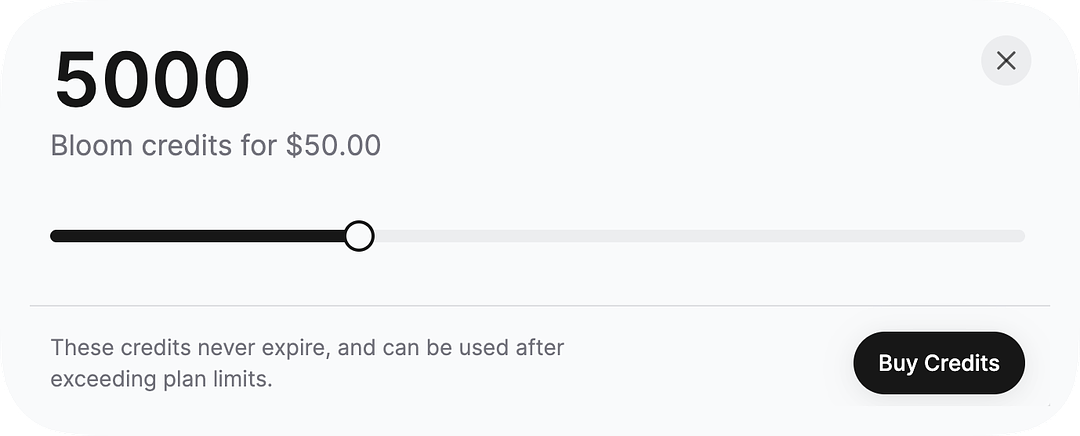 This is useful if you're in the middle of a big build and don't want to slow down, or if your monthly limit isn't quite enough but you don't need a full plan upgrade.
Top-ups are available to all paid users. Head to your account page and look for the credits section to see the options.
[**Buy credits →**](https://bloom.diy)
### Version History is Now Available in Bloom
Every time the agent makes a change to your app, that state is saved as a version. Open version history to browse through the timeline of your app and revert to any point with one tap.
This changes how you can work with Bloom:
**Experiment without risk**\
Try something you're not sure about. If it doesn't work out, go back. You don't have to be careful about breaking things.
**Recover from bad builds**\
If the agent makes a change that breaks something and you don't notice until a few builds later, version history lets you find the last good state and restore it.
**Compare changes over time**\
Browse the history to see how your app evolved and understand what changed between versions.
Version history is available in the editor under the history tab. All your existing apps already have their history saved.
[**Try version history →**](https://bloom.diy)
### Upload Images and Assets Into Your App
You can now upload media directly into Bloom and use it in your app.
Upload images, icons, or other assets and they get stored in your app's file storage. The agent can then reference them when building, so you can say things like "use the logo I uploaded as the header image" and it will use the actual file.
Assets show up in the asset panel in the editor. You can manage, replace, or delete them from there.
This is available on all plans. Storage limits vary by plan, with Pro getting 5 GB.
[**Upload images in Bloom →**](https://bloom.diy)
### Attach Files to Your Prompts
You can now attach files directly in the chat when building your app.
Drag a file into the input or use the attachment button to add it to your message. The agent reads the file and uses it as context for whatever you're asking it to build.
This is useful if you're in the middle of a big build and don't want to slow down, or if your monthly limit isn't quite enough but you don't need a full plan upgrade.
Top-ups are available to all paid users. Head to your account page and look for the credits section to see the options.
[**Buy credits →**](https://bloom.diy)
### Version History is Now Available in Bloom
Every time the agent makes a change to your app, that state is saved as a version. Open version history to browse through the timeline of your app and revert to any point with one tap.
This changes how you can work with Bloom:
**Experiment without risk**\
Try something you're not sure about. If it doesn't work out, go back. You don't have to be careful about breaking things.
**Recover from bad builds**\
If the agent makes a change that breaks something and you don't notice until a few builds later, version history lets you find the last good state and restore it.
**Compare changes over time**\
Browse the history to see how your app evolved and understand what changed between versions.
Version history is available in the editor under the history tab. All your existing apps already have their history saved.
[**Try version history →**](https://bloom.diy)
### Upload Images and Assets Into Your App
You can now upload media directly into Bloom and use it in your app.
Upload images, icons, or other assets and they get stored in your app's file storage. The agent can then reference them when building, so you can say things like "use the logo I uploaded as the header image" and it will use the actual file.
Assets show up in the asset panel in the editor. You can manage, replace, or delete them from there.
This is available on all plans. Storage limits vary by plan, with Pro getting 5 GB.
[**Upload images in Bloom →**](https://bloom.diy)
### Attach Files to Your Prompts
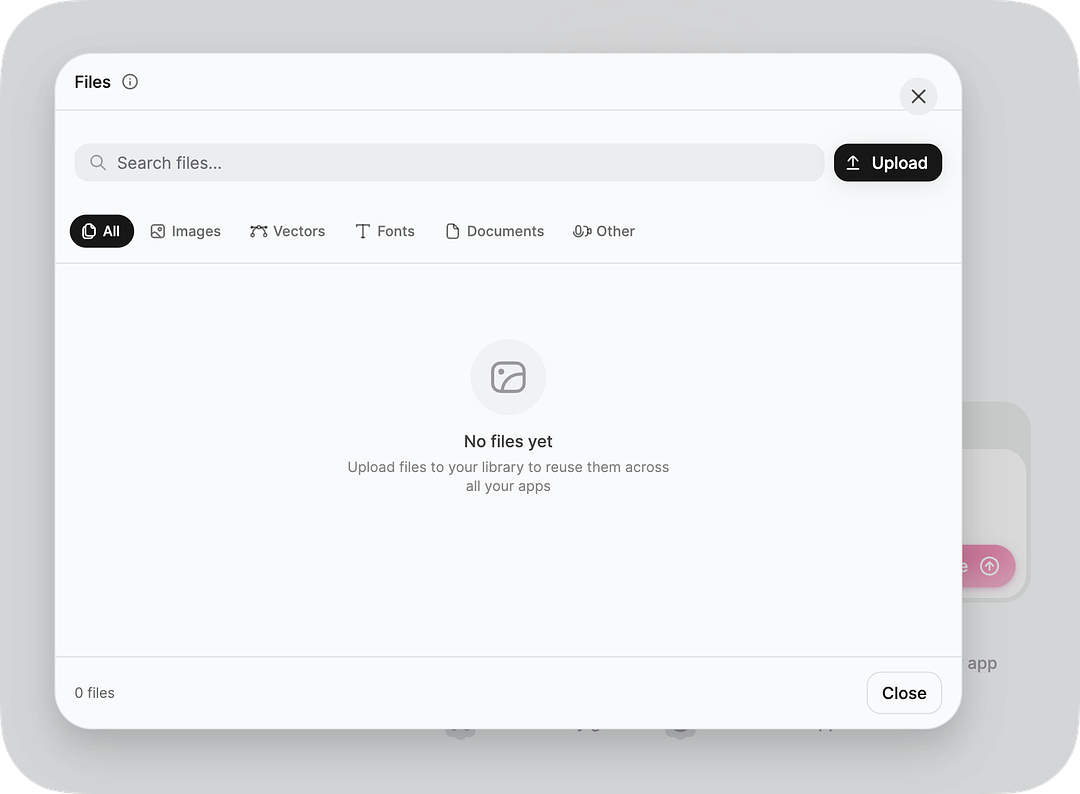
You can now attach files directly in the chat when building your app.
Drag a file into the input or use the attachment button to add it to your message. The agent reads the file and uses it as context for whatever you're asking it to build.
 A few ways people are using this:
**CSV or JSON data**\
Describe a table or list view and attach the data file. The agent can model your schema directly from your actual data rather than guessing.
**Design references**\
Attach a screenshot or mockup and tell the agent to match it. Works well for getting layouts close on the first pass.
**Spec documents**\
If you have a requirements doc, product brief, or any structured description of what you want, attach it and the agent will use it.
File attachments work on web and iOS.
[**Try out attachments →**](https://bloom.diy)
### You Can Now Choose Your Model in Bloom
The model selector is now available in the editor on web and iOS.
A few ways people are using this:
**CSV or JSON data**\
Describe a table or list view and attach the data file. The agent can model your schema directly from your actual data rather than guessing.
**Design references**\
Attach a screenshot or mockup and tell the agent to match it. Works well for getting layouts close on the first pass.
**Spec documents**\
If you have a requirements doc, product brief, or any structured description of what you want, attach it and the agent will use it.
File attachments work on web and iOS.
[**Try out attachments →**](https://bloom.diy)
### You Can Now Choose Your Model in Bloom
The model selector is now available in the editor on web and iOS.
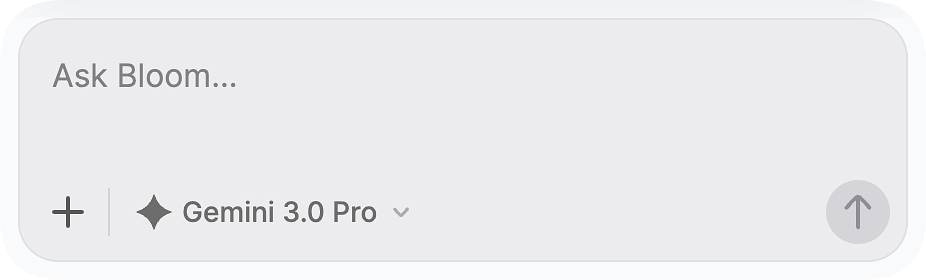 By default, Bloom uses the best available model for building. But if you want to switch, you can now do it from the editor without any settings changes. Different models have different strengths, and some builds benefit from switching.
The selector shows you what's available on your plan. Some models are available to all users, others are on paid plans only.
To try it: open the editor, look for the model indicator near the chat input, and tap it to see your options.
[**Explore models →**](https://bloom.diy)
### We Redesigned the First-Run Experience
If you sign up for Bloom today, the onboarding is different.
When your first app is generating, Bloom now shows tips and context alongside the build. Instead of watching a loading state, you see what's happening, why it takes time, and what you can do once it's ready.
We also updated the questions we ask during setup. They're shorter and more focused, so we can do a better job of tailoring your first experience to what you're actually trying to build.
If you signed up before this change, you can replay onboarding from your account settings if you want to see it.
[**Open Bloom →**](https://bloom.diy)
### We Updated Our Plans and Pricing
We've made changes to the credit limits and features across our Starter, Premium, and Pro plans.
By default, Bloom uses the best available model for building. But if you want to switch, you can now do it from the editor without any settings changes. Different models have different strengths, and some builds benefit from switching.
The selector shows you what's available on your plan. Some models are available to all users, others are on paid plans only.
To try it: open the editor, look for the model indicator near the chat input, and tap it to see your options.
[**Explore models →**](https://bloom.diy)
### We Redesigned the First-Run Experience
If you sign up for Bloom today, the onboarding is different.
When your first app is generating, Bloom now shows tips and context alongside the build. Instead of watching a loading state, you see what's happening, why it takes time, and what you can do once it's ready.
We also updated the questions we ask during setup. They're shorter and more focused, so we can do a better job of tailoring your first experience to what you're actually trying to build.
If you signed up before this change, you can replay onboarding from your account settings if you want to see it.
[**Open Bloom →**](https://bloom.diy)
### We Updated Our Plans and Pricing
We've made changes to the credit limits and features across our Starter, Premium, and Pro plans.
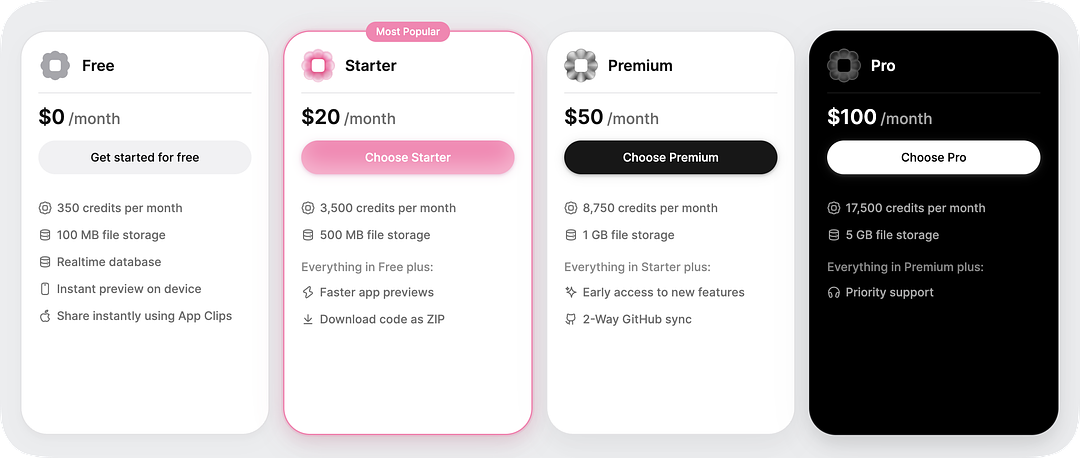 Here's what's in each plan now:
**Free**\
A limited number of credits to try Bloom and see what it can build.
**Starter**\
3,500 credits per month, downloadable code, and faster previews.
**Premium**\
8,750 credits per month, two-way GitHub sync, and early access to new features.
**Pro**\
17,500 credits per month, 5 GB file storage, and priority support.
If you're on a paid plan, your account has already been updated to the new limits. Check your account page to see your current balance and plan details.
If you have questions about what changed for your account specifically, reach out via in-app support.
[**View pricing →**](https://bloom.diy/pricing)
### Bloom Apps Now Support App Clips
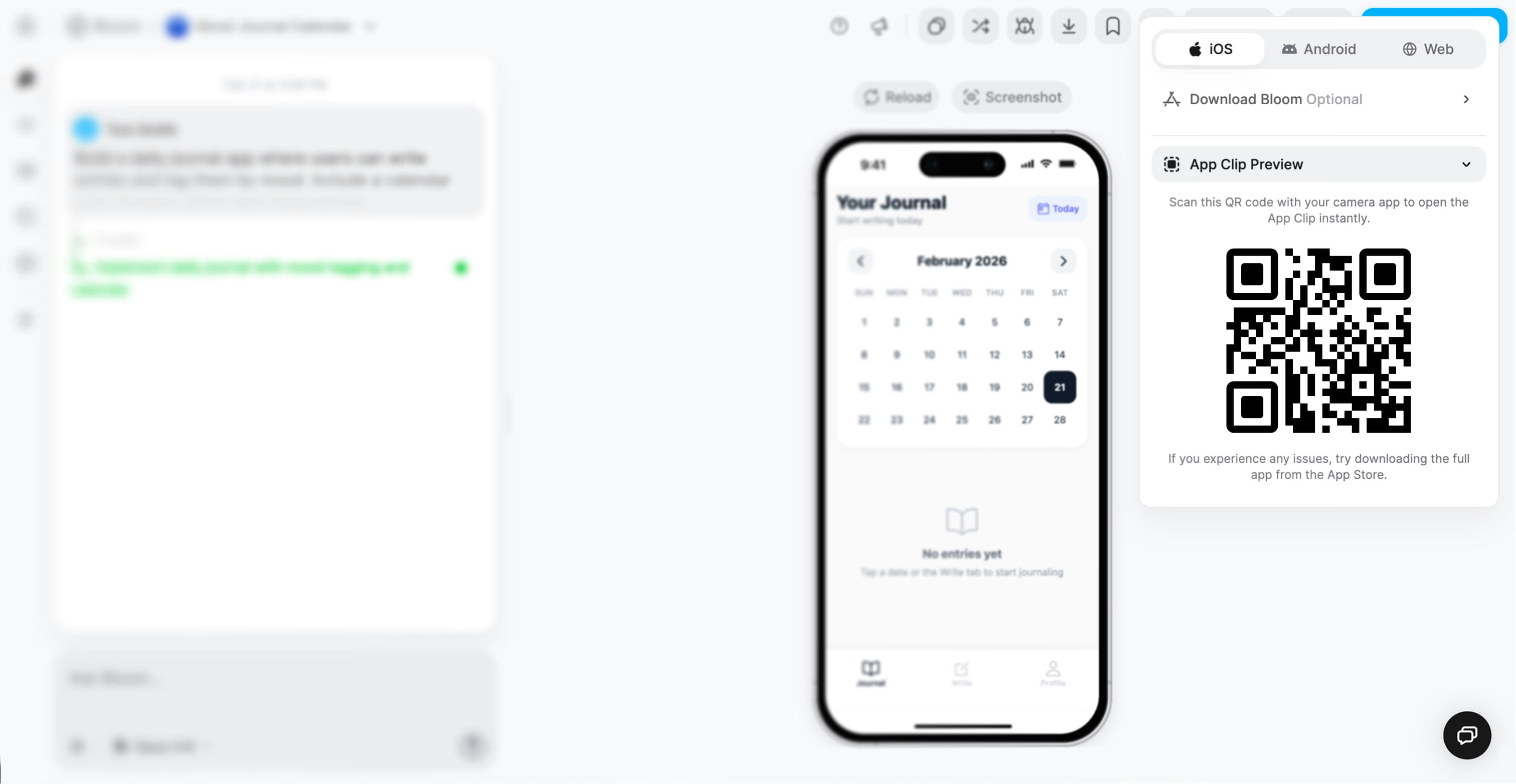
Anyone can now try a Bloom app from a link on iOS without downloading or installing anything.
When you share your app link, iPhone users who don't have it installed will get an App Clip experience instead of a blank page. They can use the core features of your app immediately, right from the share sheet or a browser tap.
Here's what's in each plan now:
**Free**\
A limited number of credits to try Bloom and see what it can build.
**Starter**\
3,500 credits per month, downloadable code, and faster previews.
**Premium**\
8,750 credits per month, two-way GitHub sync, and early access to new features.
**Pro**\
17,500 credits per month, 5 GB file storage, and priority support.
If you're on a paid plan, your account has already been updated to the new limits. Check your account page to see your current balance and plan details.
If you have questions about what changed for your account specifically, reach out via in-app support.
[**View pricing →**](https://bloom.diy/pricing)
### Bloom Apps Now Support App Clips
Anyone can now try a Bloom app from a link on iOS without downloading or installing anything.
When you share your app link, iPhone users who don't have it installed will get an App Clip experience instead of a blank page. They can use the core features of your app immediately, right from the share sheet or a browser tap.
 This is useful for a few things:
**Sharing with people who won't install an app**\
If you're showing your app to someone and don't want to ask them to go to the App Store, send them the link. It just works.
**Getting faster feedback**\
Testers can try your app without any friction. No TestFlight, no setup.
App Clip support is on by default for all Bloom apps. Nothing to configure.
[**Try app clips →**](https://bloom.diy)
### In-App Support Is Now Powered by Intercom
We've moved our support chat from Featurebase to Intercom.
The help button is in the same place. Tap it from anywhere in Bloom to open a conversation. What's changed is the experience on the other side: faster responses, better routing, and a cleaner thread history.
Paid users get priority responses. If you're on a free plan and have something urgent, you're still welcome to post in Community Support and we'll help.
One thing to note: your old Featurebase conversations didn't carry over. If you had an open issue we hadn't resolved, please open a new thread in Intercom and reference the original so we can pick it up.
[**Get support →**](https://bloom.diy)
### The Bloom iOS App Has a New Design
We've redesigned the Bloom iOS app with native liquid glass effects throughout the editor and home screen.
The glass surfaces, tab bar, and editor panels now use the same material design system that Apple uses in iOS itself. It adapts to your wallpaper, responds to light and dark mode, and feels like it belongs on iPhone rather than being a web app wrapped in a shell.
This was a significant rewrite of how we render UI on mobile. Beyond looking better, it also performs better, especially when switching between apps or opening the editor.
Update the app from the App Store to get it.
[**Download app →**](https://apps.apple.com/us/app/bloom-build-apps-with-ai/id6740775687)
### See What the Agent Is Thinking Before It Builds
The agent now shows its thinking step in real time before it starts writing code.
When you send a prompt, you'll see the agent reason through the problem first. It figures out what needs to change, what files to look at, and what approach to take before touching anything.
This is useful for a couple of reasons:
**Catch misunderstandings early**\
If the agent has interpreted your prompt differently than you intended, you'll see it in the thinking step before any code is written. You can stop it and rephrase rather than waiting for a full build to come back wrong.
**Understand what the agent is doing**\
Builds are less of a black box now. You can follow along and get a sense of how the agent thinks about your app.
The thinking step appears automatically. No setting to turn on.
### Apple Sign In Is Now Available
You can now sign in to Bloom with Apple. It works on [**bloom.diy**](https://bloom.diy) and in the iOS app, and sits alongside Google and email as a full sign in option.
If you've been waiting to create an account, or want to switch how you log in, head to the sign in screen and you'll see the option there.
[**Sign up with Apple →**](https://bloom.diy)
This is useful for a few things:
**Sharing with people who won't install an app**\
If you're showing your app to someone and don't want to ask them to go to the App Store, send them the link. It just works.
**Getting faster feedback**\
Testers can try your app without any friction. No TestFlight, no setup.
App Clip support is on by default for all Bloom apps. Nothing to configure.
[**Try app clips →**](https://bloom.diy)
### In-App Support Is Now Powered by Intercom
We've moved our support chat from Featurebase to Intercom.
The help button is in the same place. Tap it from anywhere in Bloom to open a conversation. What's changed is the experience on the other side: faster responses, better routing, and a cleaner thread history.
Paid users get priority responses. If you're on a free plan and have something urgent, you're still welcome to post in Community Support and we'll help.
One thing to note: your old Featurebase conversations didn't carry over. If you had an open issue we hadn't resolved, please open a new thread in Intercom and reference the original so we can pick it up.
[**Get support →**](https://bloom.diy)
### The Bloom iOS App Has a New Design
We've redesigned the Bloom iOS app with native liquid glass effects throughout the editor and home screen.
The glass surfaces, tab bar, and editor panels now use the same material design system that Apple uses in iOS itself. It adapts to your wallpaper, responds to light and dark mode, and feels like it belongs on iPhone rather than being a web app wrapped in a shell.
This was a significant rewrite of how we render UI on mobile. Beyond looking better, it also performs better, especially when switching between apps or opening the editor.
Update the app from the App Store to get it.
[**Download app →**](https://apps.apple.com/us/app/bloom-build-apps-with-ai/id6740775687)
### See What the Agent Is Thinking Before It Builds
The agent now shows its thinking step in real time before it starts writing code.
When you send a prompt, you'll see the agent reason through the problem first. It figures out what needs to change, what files to look at, and what approach to take before touching anything.
This is useful for a couple of reasons:
**Catch misunderstandings early**\
If the agent has interpreted your prompt differently than you intended, you'll see it in the thinking step before any code is written. You can stop it and rephrase rather than waiting for a full build to come back wrong.
**Understand what the agent is doing**\
Builds are less of a black box now. You can follow along and get a sense of how the agent thinks about your app.
The thinking step appears automatically. No setting to turn on.
### Apple Sign In Is Now Available
You can now sign in to Bloom with Apple. It works on [**bloom.diy**](https://bloom.diy) and in the iOS app, and sits alongside Google and email as a full sign in option.
If you've been waiting to create an account, or want to switch how you log in, head to the sign in screen and you'll see the option there.
[**Sign up with Apple →**](https://bloom.diy)