> ## Documentation Index
> Fetch the complete documentation index at: https://docs.bloom.diy/llms.txt
> Use this file to discover all available pages before exploring further.
# Instant Sharing
> Share your app instantly with a link or QR code—no App Store required.
**Instant Sharing** lets you share your app with others immediately, without waiting for App Store approval or going through complex deployment processes. Anyone with your share link can try your app on their device right away.
 ## Why instant sharing matters
Traditional app distribution requires:
* Submitting to app stores (days or weeks of review)
* Managing certificates and provisioning profiles
* Separate builds for iOS and Android
* Users downloading and installing from stores
**With Bloom's instant sharing:**
Generate a link and share it in seconds—no waiting for approval.
Get feedback from testers, clients, or team members before publishing.
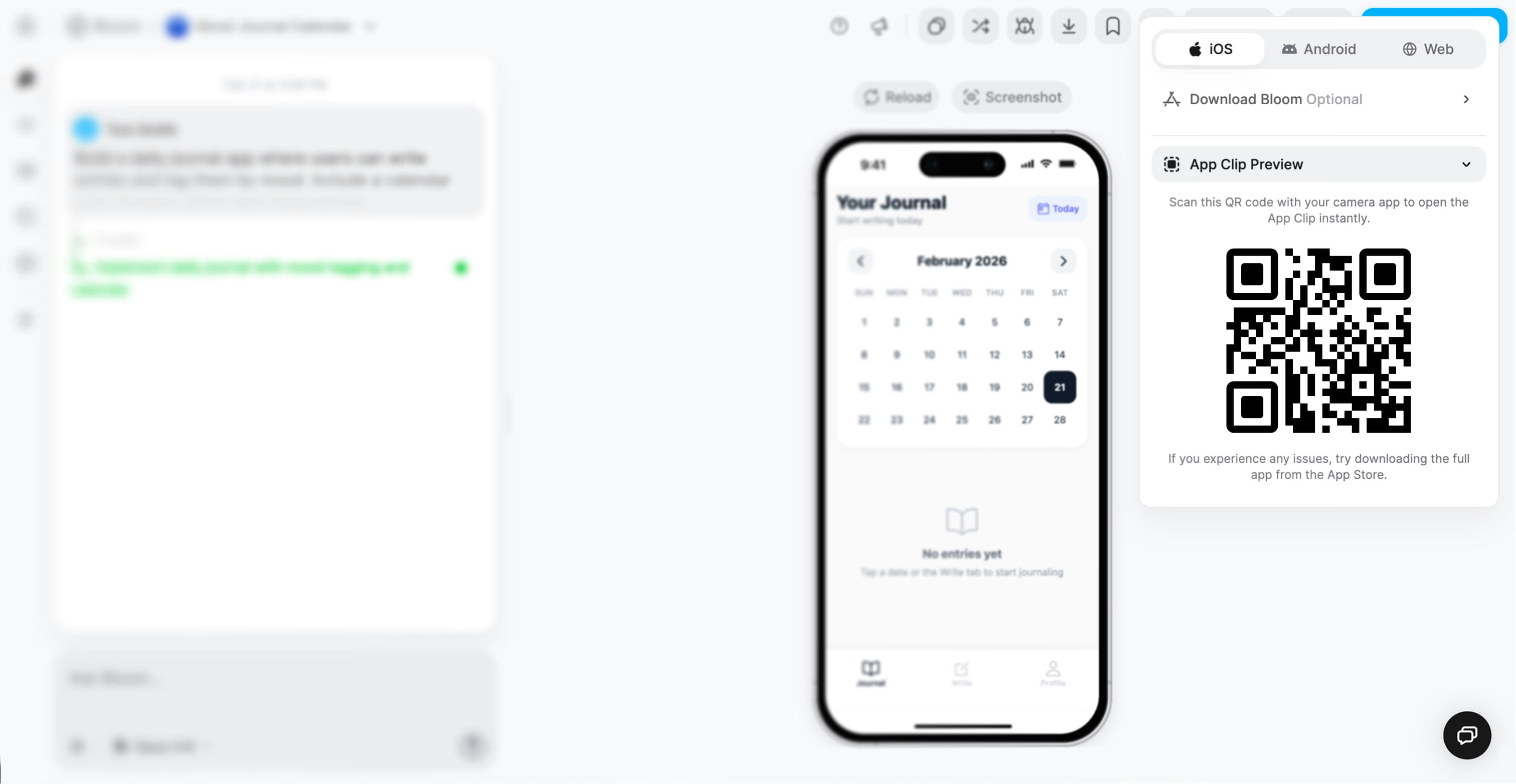
On iOS, apps run as native App Clips. On other platforms, they run as progressive web apps.
Changes you make in Bloom are reflected immediately in shared links.
## How to share your app
### Generate a share link
In the top toolbar of your Bloom workspace, click the **Share** button.
## Why instant sharing matters
Traditional app distribution requires:
* Submitting to app stores (days or weeks of review)
* Managing certificates and provisioning profiles
* Separate builds for iOS and Android
* Users downloading and installing from stores
**With Bloom's instant sharing:**
Generate a link and share it in seconds—no waiting for approval.
Get feedback from testers, clients, or team members before publishing.
On iOS, apps run as native App Clips. On other platforms, they run as progressive web apps.
Changes you make in Bloom are reflected immediately in shared links.
## How to share your app
### Generate a share link
In the top toolbar of your Bloom workspace, click the **Share** button.
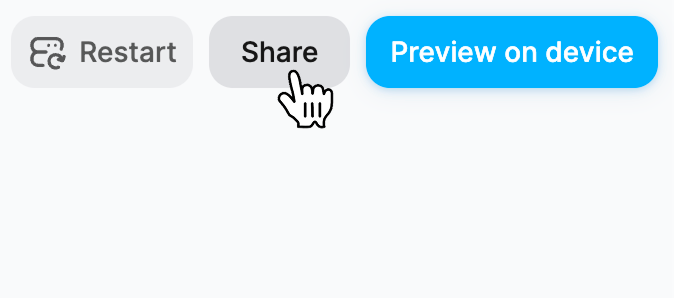 A modal appears with a shareable URL for your app.
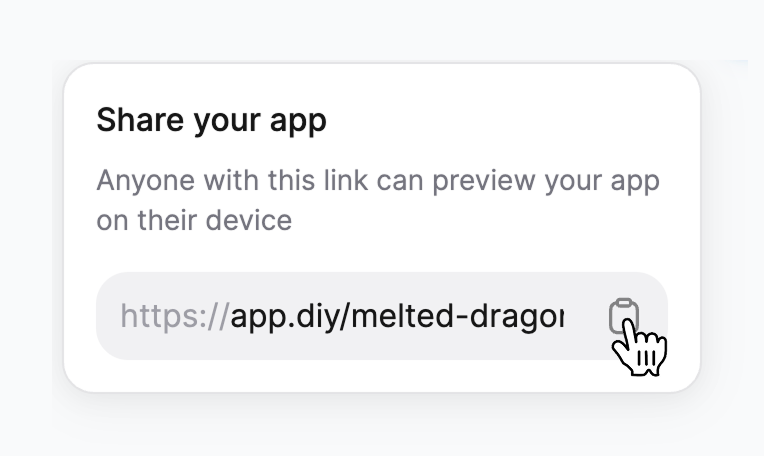 Click the **copy icon** to copy the link to your clipboard.
Send the link to anyone via:
* Text message or iMessage
* Email
* Slack, Discord, or other messaging apps
* Social media
* Embed in documentation or demos
When someone opens your link, they'll see your app's landing page with options to preview it on their device.
Click the **copy icon** to copy the link to your clipboard.
Send the link to anyone via:
* Text message or iMessage
* Email
* Slack, Discord, or other messaging apps
* Social media
* Embed in documentation or demos
When someone opens your link, they'll see your app's landing page with options to preview it on their device.
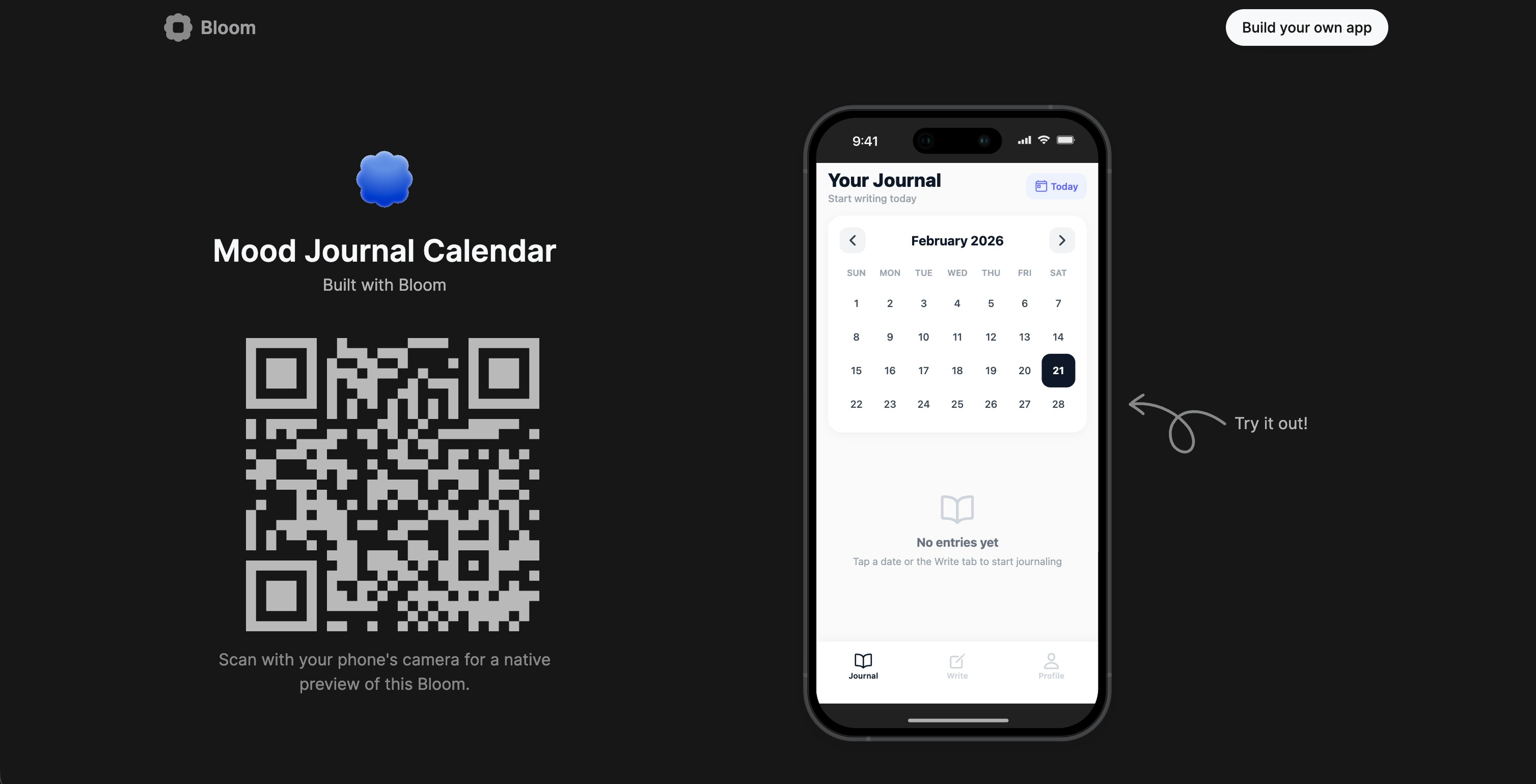 **Your app link is public** by default—anyone with the link can access your app. If your app includes authentication, users will need to sign in to access protected features.
## Preview on device
For the best testing experience, users can preview your app natively on their device:
### Platform options
**App Clip Preview**
On iOS, Bloom uses **App Clips**—a native iOS feature that lets users run apps instantly without installation.
Users open their iPhone camera and point it at the QR code displayed in the preview modal.
iOS shows a notification banner to open the App Clip.
The app runs natively on their iPhone—full performance, native UI, and complete functionality.
Runs as a native iOS app
No download or installation required
Full access to iOS features
Seamless user experience
**Optional: Download Bloom app**
If users experience any issues with the App Clip, they can download the full Bloom app from the App Store for the most reliable experience.
**Progressive Web App**
On Android, shared apps run as progressive web apps (PWAs) in the browser.
Users can scan the QR code with their camera app or tap the share link directly.
The app loads in their default mobile browser (Chrome, Firefox, etc.)
Users can add the app to their home screen for quick access—it will behave like a native app.
Works in any modern browser
Can be added to home screen
Offline capabilities (if configured)
No separate download needed
**Browser Preview**
On desktop or any device with a web browser, apps open directly in the browser.
Users simply click the URL you shared.
The app runs immediately in their web browser—no installation or setup.
Full functionality available, optimized for web viewing.
Works on any device with a browser
Great for desktop testing
Easy to embed in presentations or demos
Responsive design adapts to screen size
## Common use cases
Share your app link in Slack or email so your team can test on their devices immediately:
* Designers can verify UI on real devices
* Product managers can test flows and features
* Developers can reproduce bugs in their environment
* No need to set up development environments
Since shared apps update live, your team always sees the latest version without needing new links.
Show clients your work in progress without complicated setup:
1. Share the landing page URL in your meeting invite
2. During the demo, have the client scan the QR code
3. They can try the app on their own device in real-time
4. Get immediate feedback while you're together
No installation barriers
Works on client's preferred device
Professional presentation
Recruit testers and send them your share link:
* Get feedback from real users before launching
* Test across different devices and platforms
* No TestFlight enrollment or Android beta setup
* Users don't need Bloom accounts
Combine with authentication to track which testers are using which features.
Share early-stage ideas with stakeholders:
* Validate concepts before building everything
* Get buy-in from leadership or investors
* Show progress to keep stakeholders engaged
* Iterate based on feedback quickly
Perfect for showing your app at events:
1. Display the QR code on a screen or printed material
2. Attendees scan with their phones
3. They experience your app instantly
4. No need for demo devices or complicated setups
Create a short URL or branded link for easier verbal sharing at events.
## Understanding App Clips (iOS)
**App Clips** are Apple's technology for instant app experiences on iOS.
### How App Clips work
Your share link includes an App Clip identifier.
The system shows a banner notification to open the app.
A lightweight version of your app (under 10 MB) downloads instantly.
The app runs with full native performance—indistinguishable from an installed app.
iOS keeps the App Clip for a short time, so users can return to it easily.
### Benefits of App Clips
Runs as a native iOS app, not a web view—full speed and responsiveness.
Can use device features like camera, location, notifications (with permission).
Feels exactly like using a regular app—users don't notice the difference.
Takes up minimal space and is automatically cleaned up by iOS.
**App Clips vs. full app:** If users love your App Clip, they can choose to download the full version from the App Store (if published) for a permanent installation.
## Updating shared apps
One of the biggest advantages of instant sharing: **changes are live
immediately**.
Edit your app's UI, add features, fix bugs, or update content.
Bloom updates your app in real-time (no manual deployment needed).
Anyone with your share link sees the updated version instantly.
The same share link works for the entire lifetime of your app.
**This means:** Send one link at the start of a project, and everyone always has access to the latest version.
Be careful with breaking changes! If users are actively testing, major updates might surprise them. Consider communicating updates in advance.
## Sharing vs. publishing
**Best for:**
* Testing and feedback
* Internal team use
* Client demos
* Beta testing
* Prototypes and MVPs
**Characteristics:**
* Instant—no approval process
* Link-based access
* Updates automatically
* No app store listing
* Limited to users with the link
**Best for:**
* Public launch
* Monetization
* Broad distribution
* App Store discoverability
* Official release
**Characteristics:**
* Requires app store review
* Listed publicly in stores
* More credibility with users
* Access to app store features (ratings, search, etc.)
* More control over versioning
Ready to publish to app stores? Learn how to deploy your app.
## What's next?
Ready to publish? Learn how to deploy your app to iOS and Android stores.
Track how users interact with your shared app and catch issues.
Monitor performance and health as users test your app.
Add sign-in to control access to features in your shared app.
**Your app link is public** by default—anyone with the link can access your app. If your app includes authentication, users will need to sign in to access protected features.
## Preview on device
For the best testing experience, users can preview your app natively on their device:
### Platform options
**App Clip Preview**
On iOS, Bloom uses **App Clips**—a native iOS feature that lets users run apps instantly without installation.
Users open their iPhone camera and point it at the QR code displayed in the preview modal.
iOS shows a notification banner to open the App Clip.
The app runs natively on their iPhone—full performance, native UI, and complete functionality.
Runs as a native iOS app
No download or installation required
Full access to iOS features
Seamless user experience
**Optional: Download Bloom app**
If users experience any issues with the App Clip, they can download the full Bloom app from the App Store for the most reliable experience.
**Progressive Web App**
On Android, shared apps run as progressive web apps (PWAs) in the browser.
Users can scan the QR code with their camera app or tap the share link directly.
The app loads in their default mobile browser (Chrome, Firefox, etc.)
Users can add the app to their home screen for quick access—it will behave like a native app.
Works in any modern browser
Can be added to home screen
Offline capabilities (if configured)
No separate download needed
**Browser Preview**
On desktop or any device with a web browser, apps open directly in the browser.
Users simply click the URL you shared.
The app runs immediately in their web browser—no installation or setup.
Full functionality available, optimized for web viewing.
Works on any device with a browser
Great for desktop testing
Easy to embed in presentations or demos
Responsive design adapts to screen size
## Common use cases
Share your app link in Slack or email so your team can test on their devices immediately:
* Designers can verify UI on real devices
* Product managers can test flows and features
* Developers can reproduce bugs in their environment
* No need to set up development environments
Since shared apps update live, your team always sees the latest version without needing new links.
Show clients your work in progress without complicated setup:
1. Share the landing page URL in your meeting invite
2. During the demo, have the client scan the QR code
3. They can try the app on their own device in real-time
4. Get immediate feedback while you're together
No installation barriers
Works on client's preferred device
Professional presentation
Recruit testers and send them your share link:
* Get feedback from real users before launching
* Test across different devices and platforms
* No TestFlight enrollment or Android beta setup
* Users don't need Bloom accounts
Combine with authentication to track which testers are using which features.
Share early-stage ideas with stakeholders:
* Validate concepts before building everything
* Get buy-in from leadership or investors
* Show progress to keep stakeholders engaged
* Iterate based on feedback quickly
Perfect for showing your app at events:
1. Display the QR code on a screen or printed material
2. Attendees scan with their phones
3. They experience your app instantly
4. No need for demo devices or complicated setups
Create a short URL or branded link for easier verbal sharing at events.
## Understanding App Clips (iOS)
**App Clips** are Apple's technology for instant app experiences on iOS.
### How App Clips work
Your share link includes an App Clip identifier.
The system shows a banner notification to open the app.
A lightweight version of your app (under 10 MB) downloads instantly.
The app runs with full native performance—indistinguishable from an installed app.
iOS keeps the App Clip for a short time, so users can return to it easily.
### Benefits of App Clips
Runs as a native iOS app, not a web view—full speed and responsiveness.
Can use device features like camera, location, notifications (with permission).
Feels exactly like using a regular app—users don't notice the difference.
Takes up minimal space and is automatically cleaned up by iOS.
**App Clips vs. full app:** If users love your App Clip, they can choose to download the full version from the App Store (if published) for a permanent installation.
## Updating shared apps
One of the biggest advantages of instant sharing: **changes are live
immediately**.
Edit your app's UI, add features, fix bugs, or update content.
Bloom updates your app in real-time (no manual deployment needed).
Anyone with your share link sees the updated version instantly.
The same share link works for the entire lifetime of your app.
**This means:** Send one link at the start of a project, and everyone always has access to the latest version.
Be careful with breaking changes! If users are actively testing, major updates might surprise them. Consider communicating updates in advance.
## Sharing vs. publishing
**Best for:**
* Testing and feedback
* Internal team use
* Client demos
* Beta testing
* Prototypes and MVPs
**Characteristics:**
* Instant—no approval process
* Link-based access
* Updates automatically
* No app store listing
* Limited to users with the link
**Best for:**
* Public launch
* Monetization
* Broad distribution
* App Store discoverability
* Official release
**Characteristics:**
* Requires app store review
* Listed publicly in stores
* More credibility with users
* Access to app store features (ratings, search, etc.)
* More control over versioning
Ready to publish to app stores? Learn how to deploy your app.
## What's next?
Ready to publish? Learn how to deploy your app to iOS and Android stores.
Track how users interact with your shared app and catch issues.
Monitor performance and health as users test your app.
Add sign-in to control access to features in your shared app.