

GitHub Sync is currently in beta and available on Premium plans and above.
Setting Up GitHub Sync
In the top right corner of the editor, click the GitHub Sync button.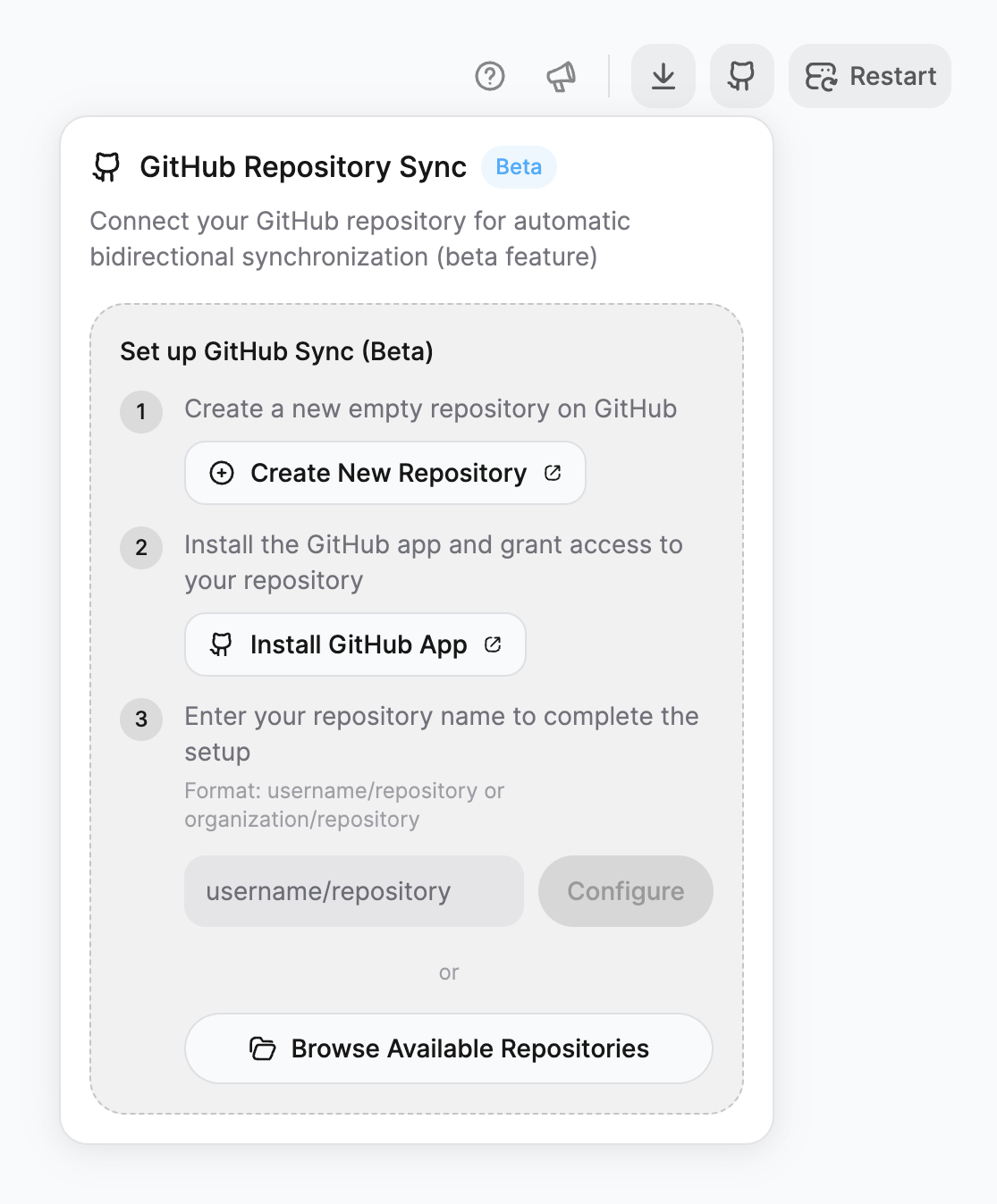
1
Create a new empty repository on GitHub
Click Create New Repository to open GitHub directly. The repository must be empty for the initial sync to work correctly.
2
Install the GitHub App
Click Install GitHub App to install the Bloom GitHub App and grant it access to your repository. You can grant access to all repositories or only select repositories.
3
Enter your repository name
Enter your repository name in the format
username/repository or organization/repository, then click Configure.You can also click Browse Available Repositories to select from repositories you’ve already granted access to.How Sync Works
GitHub Sync maintains bidirectional synchronization between Bloom and your repository.- Bloom → GitHub
- GitHub → Bloom
Changes made in Bloom push to GitHub automatically.When you generate new features or make any changes in Bloom, those changes are committed and pushed to your connected repository.
- Each generation creates a new commit
- Commits include descriptive messages
- Your full commit history is preserved
Use Cases
Work in Your IDE
Use VS Code, Cursor, or any editor you prefer. Push changes to GitHub and they’ll appear in Bloom.
Team Collaboration
Multiple team members can work on the same app using standard Git workflows.
Version Control
Full Git history lets you track changes, revert mistakes, and understand how your app evolved.
CI/CD Integration
Connect your repo to GitHub Actions or other CI/CD tools for automated testing and deployment.
Working Locally
Once your app is synced to GitHub, you can clone it and run it locally.Prerequisites
- Bun (JavaScript runtime and package manager)
- Convex CLI (for running the backend)
Running Your App
1
Clone and install
2
Set up environment variables
Copy the example environment file and fill in your Convex deployment details:You can find your Convex deployment URL in your Convex dashboard.
3
Start the development server
See App Structure to understand how your project files are organized.
Requirements and Limitations
Plan requirements
Plan requirements
GitHub Sync is available on Premium plans and above ($50/month).View pricing →
Repository requirements
Repository requirements
- The repository must be empty when you first connect
- You must have write access to the repository
- The Bloom GitHub App must be installed and authorized
Beta limitations
Beta limitations
GitHub Sync is currently in beta. You may encounter:
- Occasional sync delays
- Edge cases with complex merge conflicts
What’s Next?
App Structure
Understand how your synced codebase is organized
Backend Dashboard
Monitor your app’s performance and database